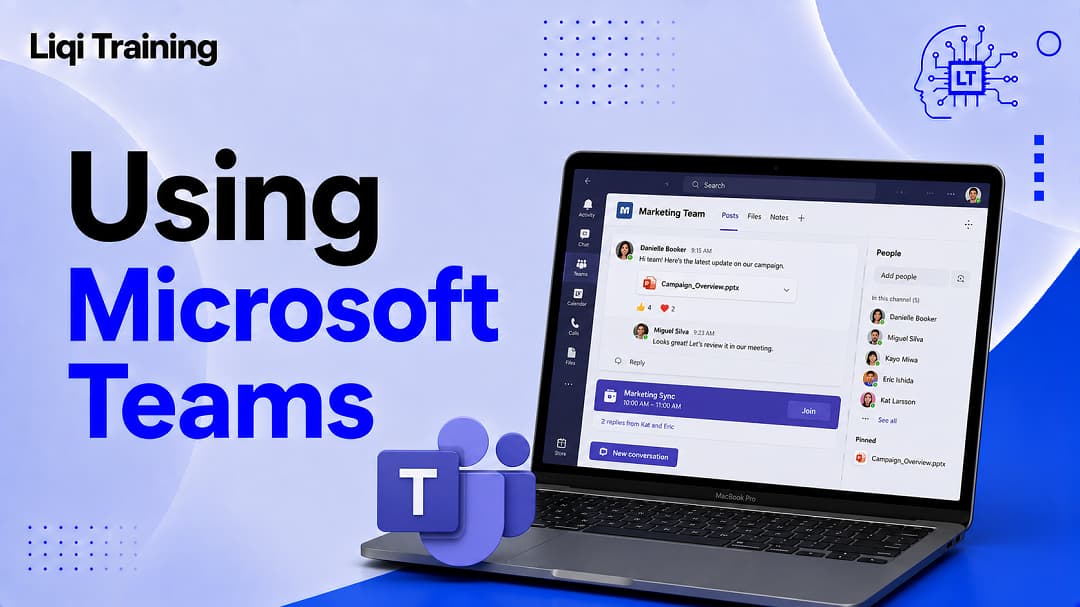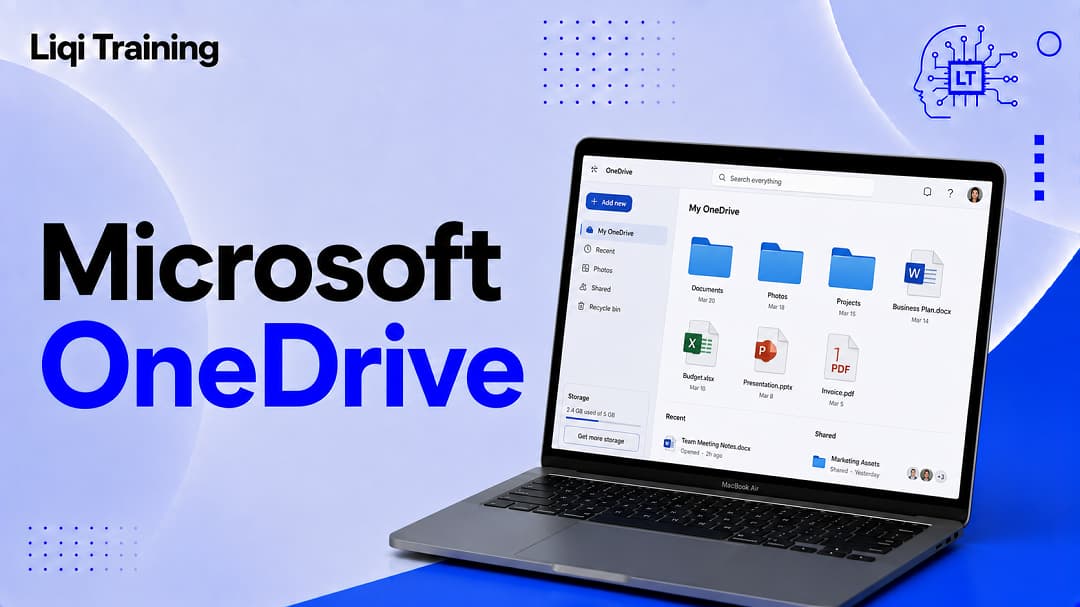
Microsoft Teams has become one of the world’s leading collaboration platforms, helping businesses, schools, nonprofits, and individuals communicate and work together from virtually anywhere. What began as a workplace chat application has evolved into a comprehensive digital workspace that combines messaging, meetings, file sharing, collaboration, task management, and AI-powered productivity tools.
Whether you’re joining your first video meeting, managing a remote workforce, collaborating on shared documents, or exploring Microsoft’s AI capabilities, Microsoft Teams provides an integrated environment designed to reduce the need for multiple disconnected applications.
This guide explains how Microsoft Teams works, its core features, meeting tools, pricing options, security capabilities, and practical productivity tips to help you get the most from the platform.
If you’re new to Microsoft’s ecosystem, start with our Microsoft Explained: Products, Services, AI, and Everything You Need to Know guide before exploring Teams in greater detail.
Key Takeaways
- Microsoft Teams combines chat, meetings, collaboration, file sharing, and communication in one platform.
- Teams integrates seamlessly with Microsoft 365 applications such as Word, Excel, Outlook, PowerPoint, and OneDrive.
- Both free and paid plans are available for individuals and organizations.
- Microsoft Copilot adds AI-powered meeting summaries, note-taking, and productivity features.
- Teams supports desktop, mobile, and web browsers, allowing users to collaborate across multiple devices.
- Built-in security and administrative controls make Teams suitable for organizations of all sizes.
What Is Microsoft Teams?
Microsoft Teams is a cloud-based collaboration platform that enables users to communicate, hold meetings, share files, and work together on projects in real time.
Rather than switching between separate messaging, video conferencing, document sharing, and project collaboration tools, Teams brings these functions together within a single application.
Because it integrates closely with Microsoft 365, users can edit documents, schedule meetings, access cloud storage, and collaborate without leaving the Teams interface.
Today, Microsoft Teams is used across a wide range of industries, including:
- Business
- Education
- Healthcare
- Government
- Nonprofit organizations
- Professional services
- Remote and hybrid workplaces
How Microsoft Teams Works
Microsoft Teams organizes collaboration around workspaces called Teams.
Each Team contains one or more Channels, which serve as dedicated spaces for conversations, files, meetings, and project-related information.
For example, a marketing department might create separate channels for:
- Campaign Planning
- Social Media
- Content Marketing
- Design Requests
- Budget Reviews
Keeping discussions organized within channels makes it easier for team members to locate files, revisit conversations, and track project progress.
Once users sign in with a Microsoft Account or a work or school account, they can access Teams from:
- Windows
- macOS
- iPhone
- iPad
- Android
- Web browsers
If you’re still setting up your Microsoft environment, our Microsoft Account guide explains account creation, security settings, and recovery options.
Microsoft Teams Features
Microsoft Teams includes a broad set of communication and collaboration tools designed to improve workplace productivity.
Team Chat
Instant messaging remains one of Teams’ most frequently used features.
Users can:
- Send one-on-one messages
- Create group chats
- Share files
- Use emojis and reactions
- Format messages
- Search previous conversations
Persistent chat history allows teams to revisit discussions without relying solely on email.
Channels
Channels help organize communication around departments, projects, or specific topics.
Each channel can contain:
- Conversations
- Shared files
- Meeting recordings
- Notes
- Integrated applications
- Task management tools
Well-organized channels reduce information overload by keeping discussions relevant to each project.
File Sharing
Microsoft Teams stores shared files in Microsoft’s cloud services, making collaboration straightforward.
Users can:
- Upload documents
- Share presentations
- Edit files together
- Track version history
- Restore previous versions
Because Teams integrates with Microsoft 365, documents open directly in familiar applications such as Word, Excel, and PowerPoint.
For document creation and collaboration tips, explore our Microsoft Word guide.
Video Meetings
Video conferencing has become one of Teams’ defining features.
Meetings support:
- HD video
- Audio conferencing
- Screen sharing
- Background effects
- Live captions
- Meeting recordings
- Chat during meetings
- Breakout rooms
These tools make Teams suitable for everything from small team discussions to organization-wide presentations.
Calendar Integration
Teams integrates directly with Outlook calendars.
Users can:
- Schedule meetings
- Accept invitations
- View upcoming events
- Join meetings with one click
This integration helps eliminate scheduling conflicts while improving coordination across organizations.
To learn more about calendar management, see our Microsoft Outlook guide.
Real-Time Collaboration
One of Teams’ biggest advantages is collaborative editing.
Instead of emailing multiple document versions, team members can work on the same file simultaneously.
Supported applications include:
- Microsoft Word
- Excel
- PowerPoint
Changes appear in real time, reducing duplication and simplifying teamwork.
Microsoft Teams Meetings
Meetings are central to the Microsoft Teams experience.
Organizations use Teams for:
- Daily stand-ups
- Client meetings
- Job interviews
- Training sessions
- Sales presentations
- Webinars
- Virtual classrooms
- Company-wide announcements
Before the Meeting
Meeting organizers can:
- Schedule sessions
- Invite participants
- Attach agendas
- Share supporting documents
- Configure permissions
- Enable meeting options
Preparing these elements beforehand helps meetings remain focused and productive.
During the Meeting
Participants can:
- Enable video
- Share screens
- Present slides
- Use meeting chat
- Raise their hands
- Participate in polls
- Collaborate on documents
- Record meetings (where permitted)
These features encourage participation while supporting both in-person and remote attendees.
After the Meeting
Teams can automatically store recordings, shared files, and meeting chats for future reference.
Organizations using Microsoft Copilot may also receive AI-generated summaries, action items, and meeting notes, helping attendees quickly review important discussions.
If you’re interested in Microsoft’s AI capabilities, read our Microsoft Copilot guide for a detailed overview of supported features.
Microsoft Teams and Microsoft 365
Teams becomes even more powerful when combined with Microsoft 365.
Users gain seamless access to:
- Microsoft Word
- Excel
- PowerPoint
- Outlook
- OneDrive
- SharePoint
- OneNote
Because these applications share cloud storage and identity management, switching between them requires minimal effort.
If you’re evaluating Microsoft’s productivity ecosystem, our Microsoft 365 guide explains subscription plans, included applications, pricing considerations, and cloud services in greater detail.
Microsoft Teams Phone
For organizations that want to consolidate workplace communication, Microsoft Teams Phone extends the platform beyond messaging and video meetings by adding cloud-based calling capabilities.
Instead of relying on a traditional office phone system, employees can make and receive business calls directly from Microsoft Teams using their computers, smartphones, tablets, or compatible desk phones.
Key Calling Features
Microsoft Teams Phone supports a variety of business communication needs, including:
- Voice calls
- Call forwarding
- Call transfer
- Voicemail
- Caller ID
- Call queues
- Auto attendants
- Call history
- Speed dial
- Emergency calling (where supported)
These capabilities help organizations manage customer communication while giving employees greater flexibility to work from different locations.
Webinars and Online Events
Microsoft Teams is more than a meeting platform. It also supports webinars, virtual training sessions, company announcements, and online events.
Depending on your Microsoft 365 subscription, organizers may have access to features such as:
- Registration pages
- Automated confirmation emails
- Waiting rooms
- Q&A sessions
- Polls and surveys
- Attendance reports
- Meeting recordings
- Presenter controls
These tools make Teams suitable for employee training, educational courses, customer demonstrations, and professional conferences.
Apps and Integrations
One reason Microsoft Teams has become a central workplace application is its ability to integrate with other Microsoft products and third-party services.
Microsoft Integrations
Teams works seamlessly with:
- Microsoft Word
- Microsoft Excel
- Microsoft PowerPoint
- Microsoft Outlook
- OneDrive
- OneNote
- SharePoint
- Planner
- Forms
- Power BI
This integration reduces the need to switch between multiple applications throughout the workday.
If you’re still exploring Microsoft’s productivity platform, our Microsoft 365 Guide: Features, Pricing, Login, Apps, and Benefits Explained provides a broader overview of these connected services.
Third-Party Integrations
Many organizations also connect Teams with external business applications, including project management, customer support, document signing, and workflow automation tools.
Depending on organizational policies, administrators can enable approved apps that improve collaboration without compromising security.
Microsoft Copilot in Teams
Artificial intelligence is becoming an increasingly important part of workplace productivity, and Microsoft Copilot brings AI-powered assistance directly into Microsoft Teams.
Rather than replacing meetings or conversations, Copilot is designed to help users save time by organizing information and automating repetitive tasks.
AI Features in Teams
Depending on your Microsoft 365 license and organizational settings, Microsoft Copilot can assist with:
- Meeting summaries
- Action item generation
- Conversation recaps
- Intelligent search
- Draft responses
- Note organization
- Task identification
- Follow-up suggestions
For example, if you arrive late to a meeting, Copilot may be able to summarize the discussion so far, allowing you to catch up without interrupting other participants.
Similarly, after a meeting concludes, Copilot can generate a concise summary highlighting key decisions and assigned responsibilities.
If you’re interested in learning how AI works across Microsoft’s ecosystem, explore our Microsoft Copilot Explained: Features, Pricing, AI Capabilities, and Best Uses article.
Microsoft Teams Free vs Paid Plans
Microsoft offers both free and subscription-based versions of Teams.
The best option depends on your communication requirements and the size of your organization.
Microsoft Teams Free
The free version is suitable for:
- Families
- Students
- Small groups
- Community organizations
- Freelancers
It provides core collaboration features, including chat, meetings, and file sharing.
However, some advanced administrative controls, compliance tools, and enterprise security features are reserved for paid Microsoft 365 plans.
Microsoft Teams with Microsoft 365
Organizations subscribing to Microsoft 365 typically receive additional capabilities such as:
- Larger meeting capacities
- Increased cloud storage
- Advanced security
- Administrative controls
- Compliance management
- Device management
- Enhanced collaboration features
- Microsoft Copilot integration (supported plans)
For businesses evaluating subscription options, our Microsoft 365 pricing and plans guide explains which plans include Teams and other productivity applications.
Security and Privacy in Microsoft Teams
Communication platforms often contain sensitive business information, making security a critical consideration.
Microsoft Teams incorporates multiple security measures to help protect users and organizational data.
Identity Protection
Secure authentication options include:
- Multi-factor authentication (MFA)
- Single sign-on (SSO)
- Conditional access policies
- Identity management through Microsoft Entra ID
Data Protection
Teams also supports:
- Data encryption
- Secure cloud storage
- Compliance policies
- Information protection
- Data loss prevention
- Retention policies
These features help organizations meet internal governance requirements while reducing security risks.
User Privacy
Users can manage various privacy settings, including notifications, presence status, permissions, and meeting preferences.
Organizations may also configure privacy settings according to regulatory or business requirements.
For additional account protection advice, read our Microsoft Account security guide.
Productivity Tips for Microsoft Teams
Learning a few best practices can significantly improve your Teams experience.
Organize Channels Clearly
Create channels based on departments, projects, or recurring topics instead of placing every conversation into one general channel.
Clear organization makes information easier to locate later.
Reduce Unnecessary Notifications
Teams provides detailed notification controls.
Customize alerts so you’re informed about important conversations without being distracted by less relevant activity.
Schedule Meetings with Agendas
Including a meeting agenda helps participants prepare beforehand and keeps discussions focused.
Sharing supporting documents in advance also improves meeting efficiency.
Use File Collaboration Instead of Email Attachments
Whenever possible, share cloud-based documents instead of sending multiple email attachments.
This approach reduces duplicate versions while ensuring everyone works from the latest file.
If your team regularly creates reports and proposals, our Microsoft Word productivity guide offers additional collaboration tips.
Record Important Meetings
Recording training sessions or project discussions allows absent team members to review information later, provided your organization’s policies permit recordings.
Use Keyboard Shortcuts
Keyboard shortcuts can speed up navigation and reduce repetitive mouse clicks.
Frequently used shortcuts include searching, opening chats, switching views, and starting new messages.
Keep Your Status Updated
Updating your availability helps colleagues understand whether you’re available, busy, in a meeting, or away from your computer.
Accurate status information can reduce interruptions during focused work.
Take Advantage of AI Features
Organizations with Microsoft Copilot can automate note-taking, meeting summaries, and follow-up tasks, allowing participants to focus more on discussions than documentation.
Common Microsoft Teams Problems and Solutions
Even well-designed collaboration platforms occasionally experience issues.
Fortunately, many common Teams problems can be resolved with basic troubleshooting.
Unable to Sign In
Possible solutions include:
- Confirm your Microsoft Account credentials.
- Reset your password if necessary.
- Verify your Microsoft 365 subscription.
- Check your internet connection.
- Contact your organization’s administrator if using a work account.
Our Microsoft 365 Login guide provides additional troubleshooting steps for sign-in problems.
Audio or Video Issues
Before joining a meeting:
- Test your microphone.
- Select the correct camera.
- Verify speaker settings.
- Close applications using the same devices.
- Install available Teams updates.
Slow Performance
Performance may improve by:
- Restarting Teams.
- Closing unnecessary applications.
- Updating your operating system.
- Clearing cached data where appropriate.
- Using a stable internet connection.
If performance problems persist across multiple Microsoft applications, reviewing your device specifications may also be worthwhile.
Missing Files
Shared documents are often stored in OneDrive or SharePoint rather than directly inside Teams.
Checking those connected storage locations can help locate files that appear to be missing.
Best Practices for Using Microsoft Teams Effectively
Whether you’re using Microsoft Teams for personal collaboration or managing communication across a large organization, following established best practices can help improve productivity while reducing unnecessary complexity.
Create a Logical Team Structure
As organizations grow, it’s easy for Teams workspaces to become cluttered. Creating a clear structure from the beginning makes information easier to locate.
Consider organizing Teams by:
- Department
- Project
- Client
- Location
- Business function
Within each Team, use channels only when they serve a distinct purpose. Avoid creating unnecessary channels that may confuse users.
Establish Communication Guidelines
Teams works best when everyone understands how it should be used.
Organizations often create simple guidelines such as:
- Use channels for project discussions.
- Reserve private chats for one-on-one conversations.
- Mention colleagues only when their input is needed.
- Share files through Teams instead of sending multiple email attachments.
- Keep meeting recordings organized.
These practices help maintain productive collaboration while reducing information overload.
Manage Notifications Carefully
Receiving alerts for every conversation can become distracting.
Instead, customize notifications based on your priorities by:
- Following important channels.
- Muting conversations that are no longer relevant.
- Prioritizing mentions.
- Scheduling quiet hours where supported.
A well-managed notification strategy allows you to stay informed without constant interruptions.
Keep Files Organized
As projects grow, file management becomes increasingly important.
To improve organization:
- Use descriptive file names.
- Store documents in the correct channel.
- Archive outdated material when appropriate.
- Maintain consistent folder structures.
- Avoid creating duplicate copies.
Cloud-based collaboration is most effective when everyone works from a single, up-to-date version of a document.
Review Permissions Regularly
Business administrators should periodically review:
- Team membership
- Guest access
- File-sharing permissions
- External collaboration settings
- Administrative roles
Routine permission reviews help protect sensitive information while ensuring employees have access to the resources they need.
Microsoft Teams for Different Types of Users
One reason Microsoft Teams has become so widely adopted is its flexibility across different industries and use cases.
Small Businesses
Small organizations often use Teams to:
- Communicate with employees
- Share files securely
- Hold customer meetings
- Coordinate projects
- Reduce reliance on multiple communication platforms
When paired with Microsoft 365 for small businesses, Teams creates a centralized workspace that supports day-to-day operations.
Enterprise Organizations
Larger organizations typically benefit from:
- Advanced security controls
- Identity management
- Compliance features
- Device management
- Large-scale collaboration
- Administrative reporting
These capabilities make Teams suitable for organizations with thousands of employees across multiple locations.
Schools and Universities
Educational institutions use Microsoft Teams to support:
- Virtual classrooms
- Assignment distribution
- Student collaboration
- Online discussions
- Teacher communication
- Parent engagement (where implemented)
Its integration with Microsoft 365 Education allows students and educators to collaborate using familiar productivity applications.
Remote and Hybrid Teams
Remote work continues to be an important part of many organizations.
Microsoft Teams helps distributed teams remain connected through:
- Instant messaging
- Video meetings
- Shared documents
- Project collaboration
- Cloud storage
- AI-assisted meeting summaries
Rather than relying solely on email, employees can communicate in real time while maintaining organized project discussions.
Frequently Asked Questions
Is Microsoft Teams free?
Yes. Microsoft offers a free version of Teams that includes chat, meetings, and file sharing. Businesses requiring advanced administration, security, or compliance capabilities typically choose a Microsoft 365 subscription.
Do I need Microsoft 365 to use Teams?
Not necessarily. Teams can be used with a free account, but many premium features become available through eligible Microsoft 365 plans.
If you’re comparing available subscriptions, our Microsoft 365 Guide explains the differences between personal, family, business, and enterprise plans.
Can Microsoft Teams be used on mobile devices?
Yes. Microsoft Teams is available for Android and iPhone, allowing users to participate in meetings, send messages, share files, and collaborate while away from their computers.
How many people can join a Teams meeting?
Meeting capacity depends on the type of account and Microsoft 365 plan being used. Microsoft periodically updates participant limits as the platform evolves.
Is Microsoft Teams secure?
Microsoft Teams includes enterprise-grade security features such as encrypted communications, identity management, multi-factor authentication, compliance tools, and administrative controls. Organizations can further strengthen security by implementing appropriate governance policies.
Does Microsoft Teams work with Outlook?
Yes. Outlook integrates directly with Teams, allowing users to schedule meetings, manage calendars, send invitations, and join meetings with a single click.
For additional email and calendar tips, read our Microsoft Outlook Guide.
Can I edit Word documents inside Teams?
Yes. Documents stored in Teams can be opened and edited collaboratively using Microsoft Word, Excel, or PowerPoint without downloading multiple copies.
Our Microsoft Word Guide explains how collaborative editing works in greater detail.
How does Microsoft Copilot improve Teams?
Microsoft Copilot can summarize meetings, identify action items, organize notes, answer questions about meeting discussions, and help users find information more quickly within Microsoft Teams.
To understand Microsoft’s broader AI strategy, explore our Microsoft Copilot Explained article.
Conclusion
Microsoft Teams has evolved into far more than a messaging application. It now serves as a complete collaboration platform that combines communication, meetings, file sharing, document collaboration, cloud storage, and artificial intelligence within a single workspace.
Its seamless integration with Microsoft 365 allows users to move effortlessly between Outlook, Word, Excel, PowerPoint, OneDrive, and Teams without disrupting their workflow. This connected ecosystem helps individuals remain productive while enabling organizations to improve collaboration across departments, offices, and time zones.
As Microsoft continues investing in AI-powered features through Microsoft Copilot, Teams is becoming even more capable of reducing administrative work, improving meeting efficiency, and helping users focus on meaningful collaboration rather than repetitive tasks.
Whether you’re a student attending virtual classes, a freelancer managing clients, or an enterprise supporting thousands of employees, Microsoft Teams provides a scalable communication platform that can adapt to a wide range of collaboration needs.
ADVERTISEMENT