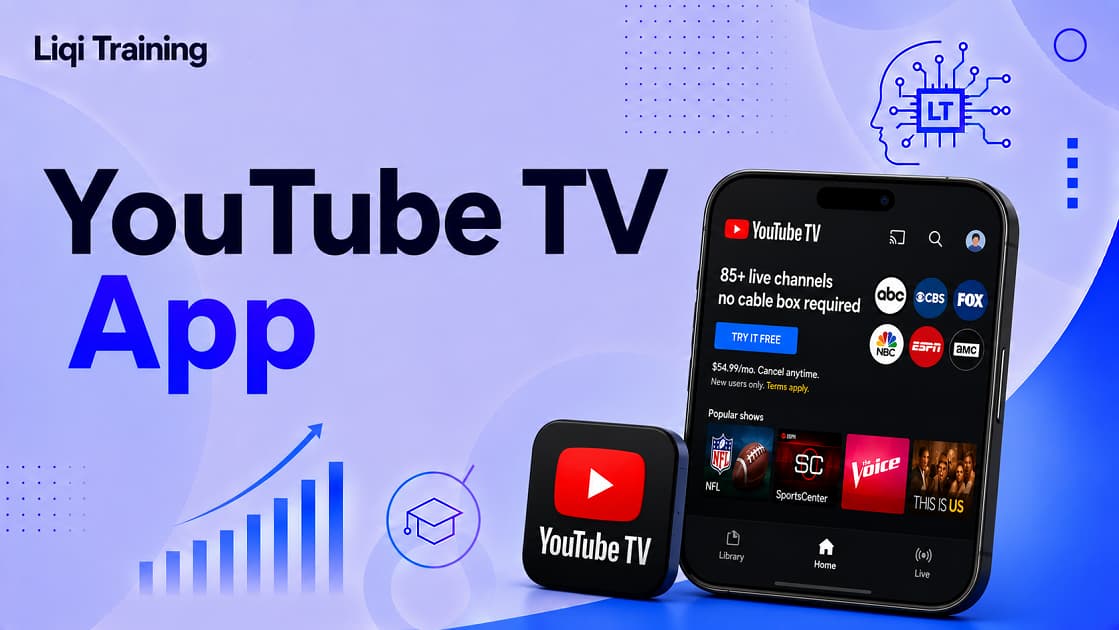
YouTube TV app is available on a wide range of devices, including Android phones, iPhones, iPads, Roku, Apple TV, Amazon Fire TV, Google TV, Android TV, Samsung Smart TVs (2017+), LG Smart TVs (2016+), select VIZIO models, game consoles, and web browsers. New subscribers can install the app from their device’s official app store and sign in with the Google account associated with their YouTube TV membership.
YouTube TV supports features such as unlimited Cloud DVR, multiple user profiles, and live TV streaming across compatible devices. For the best experience, keep both your device software and the YouTube TV app updated to the latest version. Beginners can improve streaming quality by using a stable internet connection, organizing their Library, and customizing live guide settings. Installing a streaming app should be simple, but for first-time users, the process can quickly become confusing.
Should you download a separate app on your smart TV? Does every streaming device support YouTube TV? Can you watch through a web browser instead of installing anything? And why do some televisions display YouTube but not YouTube TV?
These are common questions, especially for people replacing traditional cable with internet-based television. The YouTube TV app serves as the gateway to Google’s live TV streaming service. Once installed, it lets you watch live channels, browse on-demand content, manage your unlimited Cloud DVR, switch between family profiles, and stream from almost anywhere in the United States using a supported device.
Unlike the standard YouTube app, which focuses on free user-created videos, the YouTube TV app is designed specifically for subscribers who want access to live television channels, sports, news, and premium add-ons. Whether you’re setting up YouTube TV for the first time or helping a family member install it on a new television, this guide walks through every step, from downloading the app to troubleshooting common issues and getting the best streaming performance.
If you’re still deciding whether the service is right for you, our YouTube TV Review: Channels, Pricing, Features, and Is It Worth It? explains the available plans, DVR features, and monthly pricing.
What Is the YouTube TV App?
YouTube TV app is Google’s official application for accessing a YouTube TV subscription across supported devices.
After signing in with your Google account, you can:
- Watch live television
- Browse on-demand programming
- Schedule Cloud DVR recordings
- Resume shows across devices
- Switch between household profiles
- Manage subscriptions and settings
Because everything is tied to your Google account, your recordings and preferences automatically sync across supported devices. That means you can begin watching on your smartphone and continue later on your television without losing your place.
YouTube vs. YouTube TV App
Many beginners mistakenly assume they’re the same application.
They’re not.
YouTube
The standard YouTube app provides access to:
- Creator videos
- Shorts
- Livestreams
- Music videos
- Podcasts
- Purchased or rented content (where supported)
No YouTube TV subscription is required.
YouTube TV
The YouTube TV app requires an active membership and focuses on:
- Live television channels
- Local broadcasts
- Sports coverage
- News networks
- Entertainment channels
- Cloud DVR
Although some smart TVs integrate YouTube TV into the main YouTube interface, they remain separate services with different subscriptions.
Which Devices Support the YouTube TV App?
One of YouTube TV’s biggest strengths is its broad device compatibility.
Whether you prefer watching on a television, smartphone, tablet, or computer, chances are your device is supported.
Smart TVs
The YouTube TV app is available on many modern smart TVs, including:
- Samsung Smart TVs (2017 models and newer)
- LG Smart TVs (2016 models and newer)
- Select Android TV models
- Google TV devices
- Select VIZIO Smart TVs
- Select Sony Smart TVs
- Select Hisense Smart TVs
- Other compatible Android TV-based televisions
Support depends on your television model and operating system. Older TVs may not receive new app updates, so checking compatibility before subscribing is recommended.
Streaming Devices
If your television doesn’t support the app directly, a streaming player usually solves the problem.
Compatible devices include:
- Roku players
- Roku TVs
- Apple TV (4th generation and newer)
- Chromecast with Google TV
- Android TV streaming boxes
- Amazon Fire TV devices
- NVIDIA Shield TV
Installing the app from your device’s app store gives you the same core experience available on supported smart TVs.
Smartphones and Tablets
The YouTube TV app is also available for mobile devices.
Supported platforms include:
Android
Most Android devices running Android L (5.0) or later can download the app through Google Play, provided the device meets compatibility requirements.
iPhone and iPad
Apple users can install the app through the App Store, sign in with their Google account, and stream live TV, manage recordings, and browse their library.
Computers
You don’t necessarily need to install anything.
If you’re using:
- Google Chrome
- Mozilla Firefox
- Safari
- Microsoft Edge (supported configuration)
You can simply sign in through the YouTube TV website and begin streaming in your browser. Google recommends using the latest version of Chrome or Firefox for the best experience.
Game Consoles
Many gamers prefer watching television without switching devices.
The YouTube TV app is supported on several consoles, including:
- Xbox One
- Xbox Series X
- Xbox Series S
- PlayStation 4
- PlayStation 5
Availability may vary by region and software version.
How to Download the YouTube TV App
Downloading the app usually takes only a few minutes.
The exact process varies slightly depending on your device, but the overall steps are very similar.
How to Install the YouTube TV App
Installing the YouTube TV app is straightforward, but the exact steps vary slightly depending on the device you’re using.
The good news is that the overall setup process is almost identical across most platforms:
- Open your device’s app store.
- Search for YouTube TV.
- Download and install the official app.
- Launch the application.
- Sign in using the Google account linked to your YouTube TV subscription.
Once you’re signed in, your live channels, Library, recordings, and account preferences automatically sync across compatible devices.
Installing on a Smart TV
If your television supports YouTube TV, installation usually takes only a few minutes.
Samsung, LG, Sony, Hisense, and Other Smart TVs
- Turn on your TV.
- Open the built-in app store.
- Search for YouTube TV.
- Select Install.
- Open the app after installation.
- Sign in using your Google account.
Some newer televisions may allow you to access YouTube TV directly from within the main YouTube app, while others provide a dedicated YouTube TV application. Google documents both methods for supported TVs.
Installing on Roku
Roku remains one of the most popular streaming platforms for YouTube TV.
To install:
- Press the Home button.
- Open Streaming Channels.
- Search for YouTube TV.
- Select Add Channel.
- Launch the app.
- Sign in.
If you already have the app installed, check periodically for updates to ensure you have the latest features and bug fixes.
Installing on Amazon Fire TV
Fire TV users follow a similar process:
- Open the Amazon Appstore.
- Search for YouTube TV.
- Download the application.
- Open it.
- Sign in with your Google account.
Most recent Fire TV devices support live streaming, DVR management, and account switching.
Installing on Apple TV
Apple TV users can:
- Open the App Store.
- Search for YouTube TV.
- Download the app.
- Launch it.
- Complete sign-in.
Once connected, you can browse live television, manage recordings, and stream content in high definition when supported by your device and internet connection.
How to Sign In to the YouTube TV App
After installation, you’ll need to authenticate your account.
Most devices offer one of two methods.
First Method: Sign In Directly
Using your remote or keyboard:
- Enter your Google email.
- Enter your password.
- Complete any two-factor authentication if enabled.
Your subscription will activate immediately after successful authentication.
Second Method: Activation Code
Many televisions display an activation code instead of asking you to type your credentials.
In this case:
- Open the activation webpage shown on your TV using your phone or computer.
- Sign in with your Google account.
- Enter the activation code displayed on the television.
- Confirm.
Within a few seconds, your TV should automatically complete the sign-in process.
First-Time Setup Tips
Once you’ve signed in, spend a few minutes customizing the app.
Doing so makes everyday viewing much more enjoyable.
Customize the Live Guide
The Live Guide doesn’t have to display channels in Google’s default order.
You can:
- Move favorite channels to the top
- Hide channels you never watch
- Organize sports, news, or entertainment together
A personalized guide saves time, especially if you regularly browse live television.
Set Up Your Library
Instead of recording individual episodes, YouTube TV lets you add entire programs, teams, or movies to your Library.
For example, you can add:
- NFL teams
- TV series
- Movie franchises
- College sports
- News programs
Future broadcasts are recorded automatically using Unlimited Cloud DVR.
Create Family Profiles
One subscription supports multiple household members through individual Google accounts.
Separate profiles help keep:
- recommendations personalized
- watch history separate
- DVR suggestions relevant
- viewing progress independent
This is especially useful for families with different entertainment preferences.
Streaming Tips for Beginners
Installing the app is only the first step.
These practical tips can significantly improve your viewing experience.
Use a Stable Internet Connection
Live television depends on consistent internet performance.
Google generally recommends broadband speeds capable of supporting HD streaming, with higher speeds beneficial for multiple simultaneous streams and 4K content where available. Wired Ethernet connections typically provide more consistent performance than Wi-Fi.
Keep the App Updated
Updates frequently include:
- bug fixes
- performance improvements
- security enhancements
- new features
- compatibility improvements
Enabling automatic updates ensures you always have the newest version.
Restart Older Streaming Devices
If menus become sluggish or channels buffer unexpectedly, restarting your streaming device can often resolve temporary performance issues.
Recent reports indicate that some older streaming hardware may experience reduced functionality after newer YouTube TV updates due to hardware limitations. Keeping your device updated, or upgrading older hardware if problems persist, can improve the experience.
Troubleshooting Common YouTube TV App Problems
Even on supported devices, you may occasionally run into issues such as buffering, sign-in failures, missing channels, or playback errors. Most of these problems can be resolved without contacting support.
Rather than trying multiple random fixes, start with the simplest solution and work your way through the list below.
The App Won’t Open
If the YouTube TV app crashes immediately after launching or remains stuck on the loading screen:
- Restart your streaming device or Smart TV.
- Check for software updates.
- Update the YouTube TV app.
- Force close the application (if your device supports it).
- Reopen the app.
If the issue continues, uninstalling and reinstalling the app often removes corrupted local data that may be preventing it from loading correctly.
Buffering or Poor Video Quality
Buffering usually points to either a network issue or limited device performance.
Try these steps:
- Restart your modem and router.
- Move closer to your Wi-Fi router.
- Use a wired Ethernet connection when possible.
- Close unused apps running in the background.
- Reduce the number of devices streaming simultaneously.
Google also recommends ensuring your playback area is correctly configured, as location verification problems can sometimes affect live streaming.
Missing Local Channels
If local ABC, NBC, CBS, or FOX stations aren’t appearing:
- Open your profile.
- Select Location.
- Update your Current Playback Area.
- Verify your location using your mobile device.
This process helps YouTube TV confirm your viewing region and provide the correct local stations.
Sign-In Problems
If you cannot access your subscription:
- Confirm you’re using the correct Google account.
- Complete any two-factor authentication requests.
- Restart the app.
- Try signing in from another supported device.
If you’re still unable to log in, this guide How to Sign In to Your YouTube TV Account: Login Problems, Device Setup, and Account Recovery provides a complete walkthrough.
How to Cast YouTube TV from Your Phone
One of the easiest ways to watch on a larger screen is by casting from your mobile device.
To cast successfully:
- Connect your phone and TV (or Chromecast) to the same Wi-Fi network.
- Open the YouTube TV app.
- Tap the Cast icon.
- Select your compatible TV or Chromecast.
- Choose a live channel or recording to begin playback.
If your television doesn’t appear in the list, verify that both devices are on the same wireless network and that casting is enabled.
Frequently Asked Questions
Is the YouTube TV app free?
Yes, the app itself is free to download.
However, streaming live television requires an active YouTube TV subscription.
Can I watch YouTube TV without downloading the app?
Yes.
On computers, you can stream directly through a supported web browser by signing in to the YouTube TV website.
Does the app work when traveling?
Yes, but with limitations.
YouTube TV allows travel within the United States, although local channels may change based on your current playback area. You may occasionally need to verify your location while away from home.
Can multiple people use one account?
Yes.
YouTube TV supports family groups, allowing eligible household members to have their own personalized profiles, recommendations, and DVR libraries while sharing one subscription.
Does the app support 4K?
Yes, for supported devices and eligible content.
Some live events and on-demand programming are available in 4K with the appropriate add-on and compatible hardware.
Related Articles
To get even more from your subscription, continue with these guides:
YouTube TV
- YouTube TV Review: Channels, Pricing, Features, and Is It Worth It?
- YouTube TV Deals and Discounts: Promo Codes, Special Offers, and the Truth About the $54.99 Plan
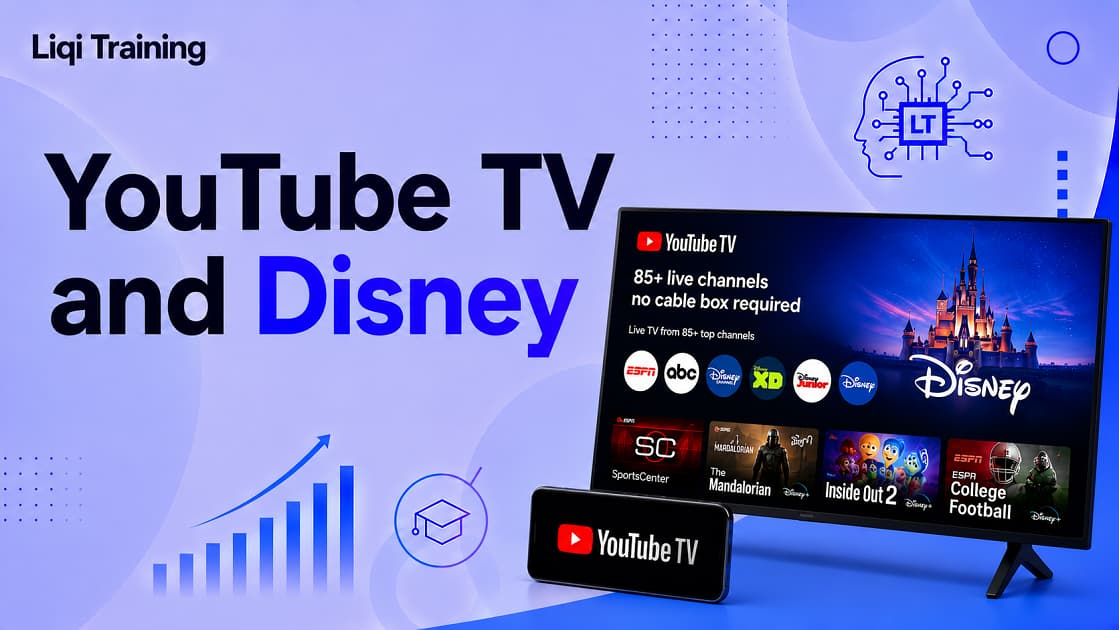
- YouTube TV and Disney: Everything to Know About ESPN, Disney Channels, and the Latest Bundle Options
- YouTube TV NFL Sunday Ticket Guide: Pricing, Supported Devices, Blackout Rules, and How to Watch Every Game
YouTube Ecosystem
- YouTube: Everything You Need to Know About the World’s Biggest Video Platform
- YouTube Music: How It Works, Premium Plans, Features, and Tips
- YouTube Kids Explained: How to Set Up Safe Viewing for Children
- YouTube to MP3: How It Works, Legal Considerations, and the Best Alternatives
- YouTube to MP4: What You Should Know Before Converting Videos
- 10 Best YouTube Monetization Strategies for Beginners
These articles provide a broader understanding of Google’s video ecosystem and help you choose the services that best match your needs.
Conclusion
For beginners, YouTube TV app makes live television remarkably accessible across a wide range of devices. Whether you prefer watching on a Smart TV, Roku, Fire TV, Apple TV, smartphone, tablet, game console, or web browser, the setup process is generally quick and requires only your Google account and an active YouTube TV subscription.
Beyond simply watching live channels, the app offers features such as Unlimited Cloud DVR, personalized family profiles, customizable channel guides, and seamless syncing between devices. Taking a few minutes to organize your Library, verify your playback location, and keep both the app and your device updated can significantly improve your long-term viewing experience.
If you experience problems, most common issues, including buffering, missing local channels, casting failures, or sign-in errors, can usually be resolved by checking your internet connection, updating the app, restarting your device, or reinstalling the application. Following Google’s recommended troubleshooting steps often restores normal operation without requiring technical support.
As YouTube TV continues expanding its plans, sports offerings, and device support, becoming familiar with the app’s features will help you get the most value from your subscription. Whether you’re replacing cable for the first time or adding another streaming service to your home, understanding how the YouTube TV app works is the first step toward a smoother and more enjoyable streaming experience.
ADVERTISEMENT