Artificial intelligence has moved from experimental technology into the software people use every day. Microsoft Copilot is one of the clearest examples. Rather than requiring users to open a separate AI chatbot for every task, Microsoft has integrated Copilot into its wider ecosystem, including Microsoft 365 applications, Teams, Outlook, Edge, and the dedicated Copilot app.
But what is Microsoft Copilot actually designed to do?
At its simplest, Copilot is an AI-powered assistant that responds to natural-language instructions. You can ask it to explain information, draft content, summarize material, analyze data, generate ideas, or help complete certain tasks. Its capabilities become more powerful when it can work with the files, applications, and information you are authorized to access.
Microsoft’s current documentation describes Microsoft 365 Copilot as an AI-powered tool for work that can provide responses using internet-based information and work content the user has permission to access. The exact capabilities depend on the Copilot experience, account, subscription, and organizational settings.
That distinction matters because “Microsoft Copilot” does not refer to one completely identical product for every user. Personal users and work or school users can have different experiences, and Microsoft continues to add and reorganize Copilot features.
Key Points:
Microsoft Copilot is Microsoft’s family of AI-powered assistance experiences, designed to help users work with information, create content, answer questions, and complete tasks using natural-language prompts.
The most important points to understand are:
- Copilot can generate, summarize, rewrite, explain, and analyze information.
- Microsoft integrates Copilot into products such as Word, Excel, PowerPoint, Outlook, Teams, OneNote, OneDrive, SharePoint, and Edge, although availability varies.
- Microsoft 365 Copilot can use relevant work information that the signed-in user is authorized to access.
- Personal Microsoft 365 subscribers can also have access to Copilot features, depending on their plan and current availability.
- Copilot can make mistakes, so AI-generated information should be reviewed before it is relied upon or shared.
- A Copilot feature appearing in Microsoft’s ecosystem does not necessarily mean every user has access to that feature.
The practical way to think about Copilot is as an AI assistant that sits inside the software and information environments people already use.
What Is Microsoft Copilot?
Microsoft Copilot is an AI-powered assistant developed by Microsoft that allows users to interact with software and information using conversational prompts.
Instead of navigating through multiple menus to perform every step of a task, you can describe what you want in ordinary language.
For example, a user working on a document might ask Copilot to summarize the document. Someone working with a spreadsheet could ask for help identifying trends. A person preparing a presentation could ask for an outline or assistance turning existing material into slides.
Microsoft describes Copilot as a conversational AI assistant that can provide contextual assistance, automate routine tasks, and analyze information.
The important word is context.
Copilot is more useful when it understands what you are working on. In a Microsoft 365 environment, the available context can include the document, spreadsheet, presentation, email, meeting, or other information the user is authorized to access.
This is one of the major differences between a general-purpose AI chatbot and an AI assistant integrated into productivity software.
How Does Microsoft Copilot Work?
At a basic level, Copilot works by interpreting a user’s prompt and generating an AI response.
When you type a request, the underlying AI model processes the instruction and produces a response based on the information available to it. Microsoft explains that Copilot uses large language model technology and conversational prompting to generate responses.
However, Microsoft Copilot is not simply a text-generation system operating without context.
Depending on the specific Copilot experience, it can combine AI models with information from the web, Microsoft applications, files, and organizational data that the user has permission to access.
For Microsoft 365 Copilot, Microsoft describes this as providing responses in the context of the Microsoft 365 application being used and relevant work information.
That allows the same basic AI technology to perform very different jobs.
For example, the request “summarize this” has little meaning without something to summarize. In Word, the object might be a document. In Teams, the context might involve a meeting or conversation. In Outlook, it could relate to email and calendar information.
The AI capability is therefore combined with the environment in which it is being used.
What Can Microsoft Copilot Do?
The answer depends on which Copilot experience you are using, but Microsoft’s current Copilot ecosystem covers a broad range of tasks.
Copilot can help users brainstorm ideas, draft and rewrite text, summarize information, answer questions, analyze data, create presentations, and work with files. Microsoft also provides specialized Copilot capabilities across its productivity applications.
For everyday users, some of the most useful applications are relatively straightforward.
You could use Copilot to turn rough notes into a first draft, make a paragraph more concise, summarize a long document, generate ideas for a presentation, or identify information within a file.
These capabilities can reduce the amount of manual work involved in getting started.
They do not eliminate the need for human judgment. Copilot generates suggestions and content, but the user remains responsible for deciding whether the result is accurate, appropriate, and suitable for its intended purpose.
Microsoft Copilot in Word
Copilot in Word is designed to help with writing and working with documents.
Microsoft says Copilot in Word can help users create drafts, rewrite and refine existing content, and understand long or complex documents. It can also work with relevant context from files and other work information when the necessary capabilities and permissions are available.
A writer could use Copilot to create an initial draft from an outline. Another user might ask it to make a section shorter, change the tone, explain a complicated passage, or summarize the key points.
This makes Copilot particularly useful during the stages where people often spend time reorganizing information rather than creating entirely new ideas.
For example, instead of manually reading a long report to identify its main conclusions, you could ask Copilot for a summary and then verify the important details against the original document.
The verification step remains important because a generated summary can omit context or misunderstand information.
Microsoft Copilot in Excel
Excel is another area where AI assistance can be particularly useful.
Microsoft says Copilot in Excel can help users build and edit workbooks and work with Excel features such as tables, charts, PivotTables, and formulas.
This means a user can interact with spreadsheet data using natural-language instructions instead of relying entirely on manual formula construction and data analysis.
For example, someone analyzing sales information might ask Copilot to identify trends or help organize a workbook.
A less experienced Excel user may also find this useful for understanding how formulas or spreadsheet structures work.
However, spreadsheets are an area where verification is particularly important. A visually convincing chart or seemingly reasonable calculation does not automatically mean the underlying result is correct.
Before using AI-generated spreadsheet changes for financial, business, or operational decisions, check the formulas, source data, assumptions, and resulting figures.
Microsoft Copilot in PowerPoint
Creating presentations often involves turning information from one format into another.
Copilot in PowerPoint can help with this process. Microsoft says it can generate presentations, transform supported Word content into presentations, summarize slides, answer questions about a presentation, and help create text and ideas.
For example, a user could start with a written project proposal and use Copilot to help turn its main ideas into a presentation structure.
That does not mean the resulting presentation is automatically ready for an audience.
A good presentation still requires editorial judgment. The creator needs to decide whether the structure makes sense, whether the slides contain too much information, whether claims are properly supported, and whether the visuals fit the audience.
Copilot can accelerate the first draft without replacing the person responsible for the final presentation.
Microsoft Copilot in Outlook
Email is another area where Copilot can save time.
Microsoft says Copilot in Outlook can help users interact with their inbox and calendar, while the available capabilities depend on the user’s account and license.
This can include assistance with drafting messages, understanding email conversations, and working with relevant calendar or inbox information.
For someone dealing with a large volume of email, summarization can be particularly useful.
Instead of reading an entire conversation to determine what needs to happen next, a user can ask Copilot to identify the important points or potential action items.
The result should still be checked against the original messages before important decisions are made.
Microsoft Copilot in Teams
Copilot also connects with Microsoft Teams, which makes it especially relevant to people who already use Teams for workplace communication.
If you are learning how to use Microsoft Teams, Copilot is one of the AI capabilities you may encounter within that broader collaboration environment.
Microsoft says Copilot in Teams can help surface meeting highlights, action items, and key discussion points. It can also provide answers related to meetings and conversations, subject to the applicable configuration and permissions.
Imagine a 45-minute project meeting involving several people. Instead of relying entirely on personal notes, Copilot can help identify important discussion points and follow-up actions.
That can make meetings easier to review afterward.
However, AI-generated meeting summaries should be treated as an aid rather than an unquestionable record. Names, decisions, deadlines, and responsibilities should be checked against the actual meeting and any official documentation.
Microsoft Copilot in OneDrive
Microsoft’s Copilot ecosystem also extends to OneDrive.
OneDrive is Microsoft’s cloud storage service, while Copilot can help users interact with files and information within supported experiences.
If you’re unfamiliar with Microsoft’s storage platform, this guide to what Microsoft OneDrive is provides the necessary background before exploring how AI assistance can work alongside cloud-based files.
This distinction is useful because OneDrive itself is not an AI assistant. It is a storage and file-management service. Copilot is the AI layer that can help users work with supported information.
Microsoft’s current Copilot documentation also lists OneDrive among the Microsoft applications where Copilot experiences can be available.
Microsoft Copilot in Edge
Microsoft has also integrated Copilot capabilities into its browser ecosystem.
Microsoft Edge is the company’s web browser, while Copilot provides AI assistance that can be accessed in Microsoft’s broader software environment.
This guide explaining what Microsoft Edge is can help clarify the distinction between the browser itself and Microsoft’s AI capabilities.
This matters because users sometimes treat every Microsoft AI feature as though it were one standalone application. In practice, Copilot can appear in different environments, with different capabilities depending on the account and product being used.
Microsoft’s current Copilot help documentation lists Edge alongside applications such as Outlook, Word, PowerPoint, Excel, Teams, OneNote, OneDrive, SharePoint, Planner, and other Microsoft services.
What Is Microsoft 365 Copilot?
Microsoft 365 Copilot is the version of Microsoft’s AI assistant designed specifically around Microsoft 365 productivity and work environments.
This distinction is important because Microsoft Copilot and Microsoft 365 Copilot are related terms but should not automatically be treated as identical products.
Microsoft 365 Copilot is designed to work within the Microsoft 365 ecosystem and can use organizational context and work data that the user has permission to access. Microsoft describes it as combining AI with Microsoft 365 applications and relevant work information.
For example, an employee could potentially use Copilot to work with information from documents, email, meetings, and other Microsoft 365 services.
The permission model is critical here.
Copilot does not simply give a user unrestricted access to every file in an organization. Microsoft states that Microsoft 365 Copilot can use work content that the user has permission to access.
That means existing access controls remain an important part of how organizations manage AI-assisted work.
Is Microsoft Copilot Free?
There is no single yes-or-no answer because Microsoft’s Copilot offerings differ.
Microsoft provides Copilot experiences for personal users, while Microsoft 365 Personal, Family, and Premium plans can include Copilot features. Microsoft also offers Copilot experiences for work and school users, with capabilities depending on licensing and organizational configuration.
This is why older articles that describe Copilot as simply “free” or “paid” can quickly become outdated.
The better approach is to check the current Copilot experience and the subscription associated with your Microsoft account.
Microsoft also notes that feature availability varies by subscription type.
If Copilot is missing from a Microsoft 365 application, that does not necessarily mean the application is broken. The feature may not be included with the particular subscription, or an organization administrator may have disabled or restricted it.
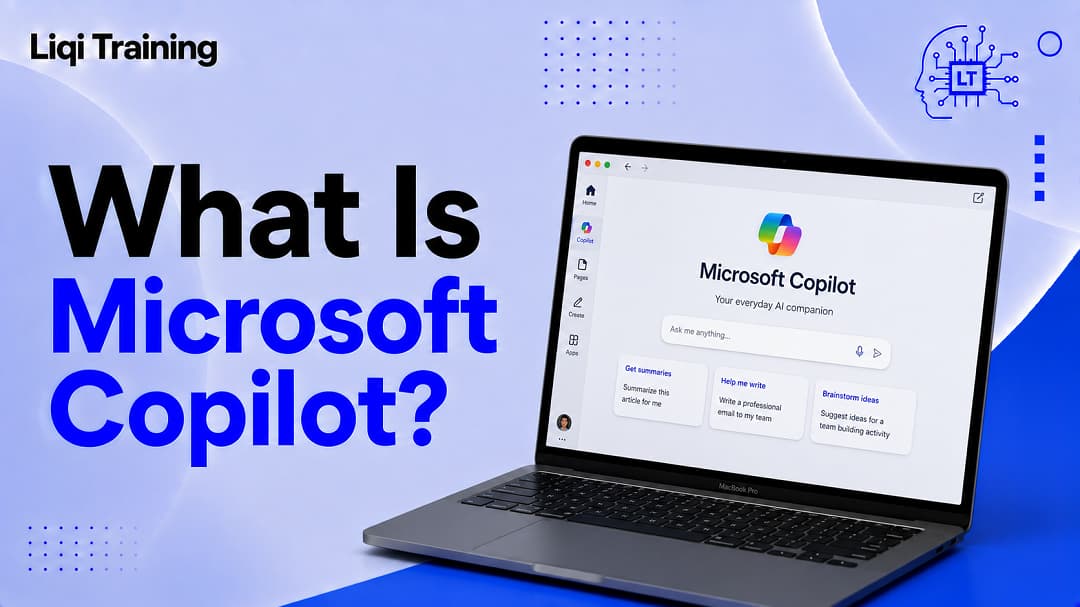
What Is the Microsoft Copilot App?
Microsoft has consolidated Copilot experiences into a dedicated Copilot app.
Microsoft’s current support documentation says the Microsoft 365 Copilot app has been renamed the Microsoft Copilot app, with the experience adapting based on whether the user signs in with a work or school account or a personal Microsoft account.
The app is available across desktop, web, and mobile experiences, although the available features depend on the account and subscription.
Microsoft says the Copilot app can provide access to capabilities such as Chat, Library, Search, Agents, and Cowork, depending on the user’s experience.
This makes the dedicated app a central entry point for users who want to interact with Copilot without opening Word, Excel, or another Microsoft application first.
What Are Microsoft Copilot Agents?
Agents extend the concept of an AI assistant beyond simple question-and-answer interactions.
Microsoft describes agents as tools that can be used to customize Copilot experiences and, in some cases, perform or assist with more specialized tasks using connected information and instructions.
The idea is straightforward: rather than asking a general AI assistant to handle every kind of task, an agent can be configured around a particular purpose.
Microsoft’s current Copilot environment includes specialized agents and tools, including Word, Excel, and PowerPoint Agents that can help users create files from natural-language descriptions.
For example, Microsoft documents scenarios where a user can describe a presentation, spreadsheet, or document and have the corresponding agent help create it.
These features demonstrate how Microsoft’s Copilot strategy is expanding from answering questions toward assisting with multi-step work.
How to Write Better Microsoft Copilot Prompts
The quality of a Copilot response is strongly influenced by the quality of the instruction.
A vague request such as “write something about marketing” gives the AI little information about what the user actually needs.
A more useful prompt can specify the task, audience, context, desired format, and constraints.
For example:
“Draft a 500-word customer email explaining a one-week service delay. Use a professional but reassuring tone and finish with three clear next steps.”
That instruction gives Copilot substantially more direction.
The same principle applies when analyzing documents or data. Tell Copilot what you want to understand rather than simply asking it to “analyze this.”
Microsoft itself recommends learning prompting techniques and refining requests to get more useful results. Its Copilot help center provides guidance on prompt construction, reviewing results, and adapting outputs.
Can Microsoft Copilot Make Mistakes?
Yes.
Copilot is an AI system, so its output should not automatically be considered accurate simply because it is presented confidently.
A response can contain incorrect facts, incomplete context, inappropriate assumptions, or a misunderstanding of the user’s request.
This is particularly important when Copilot is used for professional, financial, legal, medical, academic, or other high-consequence tasks.
Microsoft itself advises users to review generated files and content for accuracy before sharing.
A practical workflow is therefore:
Ask → review → verify → edit → use.
Copilot is most useful as an assistant in that workflow rather than as an unquestionable replacement for human judgment.
Is Microsoft Copilot Safe to Use?
Security and privacy depend on the Copilot product, account type, organization, data involved, and configuration.
For Microsoft 365 Copilot, Microsoft says the system respects existing permissions and accesses work content that the user is authorized to access.
Microsoft also provides enterprise data protection for supported work experiences and describes controls designed to protect organizational information.
That does not mean users should paste sensitive information into any AI prompt without considering the applicable policies.
Businesses should follow their organization’s rules for confidential information, customer data, intellectual property, and regulated information.
Individual users should likewise understand which account they are signed into before using Copilot with personal or work information.
Microsoft Copilot vs. a Traditional Search Engine
Copilot and a traditional search engine serve different purposes even though both can help users find information.
A search engine primarily helps you locate webpages and other online resources.
Copilot is designed to interact conversationally with a request and produce a synthesized response or assist with a task.
For example, a search engine may return several pages about how Excel formulas work. Copilot can instead help explain a formula in conversational language or assist with a workbook where the feature is supported.
That doesn’t make Copilot a replacement for search.
For important factual questions, consulting authoritative sources remains valuable. AI-generated answers can also contain errors, while original documentation gives you an opportunity to verify the information directly.
The two approaches can therefore complement each other.
Microsoft Copilot vs. Microsoft 365 Copilot
The terminology can be confusing because Microsoft uses “Copilot” across several products and experiences.
Microsoft Copilot is the broader name associated with Microsoft’s AI assistant experiences.
Microsoft 365 Copilot refers to AI capabilities designed around Microsoft 365 work and productivity applications.
The work-focused version can use organizational context and data that a user is permitted to access, making it particularly relevant to businesses and professional workflows.
Meanwhile, Microsoft also provides Copilot experiences for personal users through supported Microsoft 365 plans and the Copilot app.
Because Microsoft continues to change its product naming and packaging, checking Microsoft’s current licensing and feature documentation is the safest way to determine what a specific account includes.
How Microsoft Copilot Fits Into Microsoft’s Larger Ecosystem
Copilot is not Microsoft’s only major technology platform.
Microsoft operates a broad ecosystem covering productivity software, cloud computing, browsers, collaboration tools, storage, operating systems, and business applications.
For example, Microsoft Teams focuses on communication and collaboration. If you’re learning how to use Microsoft Teams, Copilot can be viewed as an AI capability that enhances certain Teams workflows rather than as a replacement for Teams itself.
Microsoft Azure, meanwhile, is Microsoft’s cloud-computing platform. This guide on what Microsoft Azure is covers that side of Microsoft’s business and helps explain why Azure and Copilot should not be confused.
The distinction is useful:
Teams helps people communicate and collaborate.
OneDrive helps store and manage files.
Edge provides web browsing.
Azure provides cloud-computing services.
Copilot provides AI assistance across supported Microsoft experiences.
These products can work together, but they solve different problems.
Who Should Use Microsoft Copilot?
Copilot can be useful for a wide range of users, although its value depends on the tasks they perform.
Students may use AI assistance for brainstorming, organizing notes, or understanding complex material, subject to their school’s academic policies.
Professionals can use it to draft documents, summarize information, prepare presentations, analyze spreadsheets, and manage communication.
Business teams can use Microsoft 365 Copilot to work with information already stored within their organization’s Microsoft environment, subject to licensing, permissions, and administrator controls.
Casual users may find Copilot useful for everyday writing, planning, research, and creative tasks.
The common factor is not the user’s job title. It is whether AI assistance can reduce repetitive work while still leaving a person responsible for reviewing the result.
Tips for Getting Better Results From Copilot
The most effective Copilot users generally treat the AI as a collaborator rather than a magic button.
Start by explaining the outcome you want. Include the audience, format, tone, length, source material, and any important restrictions.
If the first response isn’t useful, refine the instruction instead of starting over completely.
You can also ask Copilot to change its output. For example, a first draft can be shortened, reorganized, rewritten for a different audience, or converted into another format.
When working with existing documents or data, identify the specific information you want Copilot to focus on.
Finally, review the output before using it. AI assistance can accelerate the process, but accuracy and editorial judgment remain the user’s responsibility.
Conclusion on What Microsoft Copilot Is
So, what is Microsoft Copilot?
It is Microsoft’s AI assistant ecosystem, designed to help people interact with information, create content, analyze data, answer questions, and complete tasks through natural-language instructions.
Its biggest advantage is integration.
Instead of using AI in a completely separate environment, Copilot can appear within the applications where people already work. Word can use it for writing and document analysis. Excel can use it for spreadsheet tasks. PowerPoint can use it for presentations. Outlook can use it for email and calendar assistance. Teams can use it to help with meetings and collaboration. Microsoft’s Copilot app provides a centralized place to access supported AI experiences.
That integration is also what makes understanding Microsoft’s broader ecosystem important. Copilot is not a replacement for Microsoft 365, Teams, OneDrive, Edge, or Azure. Instead, it adds AI-powered assistance to supported parts of that ecosystem.
The technology is capable, but it is not infallible. The best results come from clear prompts, appropriate context, and careful review of what Copilot produces.
For anyone already using Microsoft’s software, learning how Copilot fits into the tools they use every day may be more valuable than treating it as simply another standalone AI chatbot.
ADVERTISEMENT