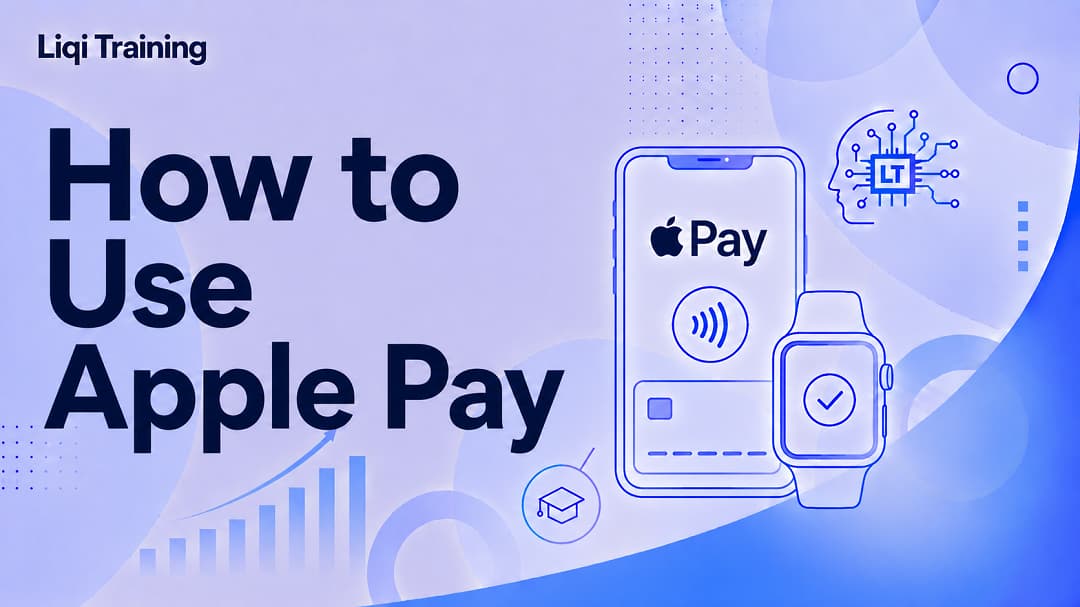
Apple Pay is Apple’s secure digital wallet that lets you pay using your iPhone, Apple Watch, iPad, or Mac. You can use Apple Pay anywhere contactless payments or the Apple Pay button are accepted. Before using Apple Pay, you must add a supported debit or credit card to the Wallet app. Apple Pay protects your financial information by using device-specific encryption and tokenization instead of sharing your actual card number.
Face ID, Touch ID, or your device passcode is required to authorize most Apple Pay transactions. Apple Pay works for in-store purchases, online shopping, in-app purchases, and contactless payments on public transportation in supported regions.
If Apple Pay isn’t working, checking your internet connection, Wallet settings, and supported payment cards usually resolves the issue.
How to Use Apple Pay In Stores, Online, and on Your iPhone
Apple Pay has become one of the fastest and most secure ways to pay for everyday purchases. Instead of carrying physical cards or entering payment details repeatedly, you can complete transactions with just a tap, double-click, or biometric authentication.
Whether you’re buying groceries, shopping online, ordering food through an app, or paying for public transportation, Apple Pay simplifies the checkout process while helping protect your financial information.
This guide explains exactly how to use Apple Pay on your iPhone and other compatible Apple devices, how it works, where it’s accepted, and what to do if it isn’t working.
What Is Apple Pay?
Apple Pay is Apple’s digital payment service that stores eligible debit cards, credit cards, and other payment methods inside the Wallet app.
Instead of transmitting your actual card number during a purchase, Apple Pay creates a unique encrypted payment token for each transaction. This security technology helps reduce the risk of exposing your financial information during payment.
Apple Pay supports:
- Contactless in-store payments
- Online shopping
- In-app purchases
- Transit systems in supported cities
- Person-to-person payments in supported regions
Because payment information is encrypted, merchants never receive your full card number.
How Apple Pay Works
Apple Pay uses Near Field Communication (NFC) technology for contactless payments in physical stores.
When you authorize a payment with Face ID, Touch ID, or your device passcode, Apple Pay securely communicates with the payment terminal.
Instead of sending your actual debit or credit card number, Apple Pay sends a unique device account number together with a one-time security code.
This process helps protect your payment information even if the retailer experiences a data breach.
Devices That Support Apple Pay
Apple Pay works on many Apple devices, including:
- iPhone with Face ID
- iPhone models with Touch ID
- Apple Watch
- iPad
- Mac with Touch ID
- Mac paired with an eligible iPhone or Apple Watch
Some Apple Pay features vary depending on your device model, country, and supported bank.
Before You Can Use Apple Pay
Before making your first payment, you’ll need to complete a few setup steps.
You’ll Need
- A compatible Apple device
- An Apple ID signed into iCloud
- A supported debit or credit card
- Face ID, Touch ID, or a device passcode enabled
- The Wallet app
Some banks may require additional identity verification before activating your card.
How to Add a Card to Apple Pay
Adding your payment card only takes a few minutes.
Step 1
Open the Wallet app on your iPhone.
Step 2
Tap the + (Add) button.
Step 3
Choose Debit or Credit Card.
Step 4
Follow the on-screen instructions to scan your card or enter the details manually.
Step 5
Verify your card if requested by your bank.
Step 6
Wait for confirmation that your card has been successfully added.
Once complete, your card is ready to use with Apple Pay.
How to Use Apple Pay in Stores
Using Apple Pay in a physical store is quick and requires only a compatible payment terminal that accepts contactless payments.
On an iPhone with Face ID
- Double-click the Side Button.
- Authenticate using Face ID.
- Hold your iPhone near the contactless payment reader.
- Wait until you see Done and a checkmark.
On an iPhone with Touch ID
- Rest your finger on the Touch ID sensor.
- Hold the phone close to the payment terminal.
- Wait for the confirmation message.
On Apple Watch
- Double-click the Side Button.
- Choose your payment card if necessary.
- Hold the watch near the payment terminal.
- Wait for the confirmation vibration.
Your payment is complete within seconds.
Where Can You Use Apple Pay in Stores?
Apple Pay is accepted anywhere you see:
- The contactless payment symbol
- The Apple Pay logo
Many supermarkets, pharmacies, restaurants, coffee shops, retail stores, gas stations, and convenience stores support Apple Pay.
Acceptance varies by country and merchant.
How to Use Apple Pay Online
Many websites now offer Apple Pay as a checkout option.
Instead of entering your payment details manually, Apple Pay securely completes the purchase using the payment information stored in your Wallet.
Steps
- Add your items to the shopping cart.
- Choose Apple Pay during checkout.
- Review your shipping address.
- Confirm the payment amount.
- Authenticate with Face ID, Touch ID, or your passcode.
- Wait for the payment confirmation.
The transaction is processed securely without revealing your full card number to the merchant.
How to Use Apple Pay Inside Apps
Many shopping, food delivery, transportation, and travel apps support Apple Pay.
The process is similar to paying online.
- Select your products or services.
- Tap the Apple Pay button.
- Review your payment details.
- Confirm the purchase using Face ID, Touch ID, or your passcode.
- Receive immediate payment confirmation.
Because Apple Pay automatically fills in your payment information, checkout is often much faster than entering card details manually.
How to Use Apple Pay on Your iPhone
Your iPhone is the most common device for making Apple Pay purchases. Once you’ve added a payment card to the Wallet app, you can pay almost anywhere contactless payments are accepted.
Paying in Stores
- Double-click the Side Button (or the Home Button on supported models).
- Authenticate using Face ID, Touch ID, or your device passcode.
- Hold the top of your iPhone a few centimeters from the contactless payment terminal.
- Wait until Done and a checkmark appear on the screen.
Your payment is processed within seconds.
Paying Within Apps
Many popular apps support Apple Pay as a checkout method.
Simply:
- Add items to your cart.
- Tap the Apple Pay button.
- Review your payment details.
- Confirm the purchase using Face ID, Touch ID, or your passcode.
This eliminates the need to manually enter your payment information.
Paying on Websites in Safari
When shopping on websites that support Apple Pay:
- Tap the Apple Pay button during checkout.
- Review your shipping address and payment method.
- Authenticate your identity.
- Confirm the purchase.
The website never receives your actual debit or credit card number, helping protect your financial information.
How to Use Apple Pay on Apple Watch
Apple Watch offers one of the fastest ways to make contactless payments because your phone doesn’t need to leave your pocket.
Make a Payment
- Double-click the Side Button.
- Your default card appears automatically.
- If needed, swipe to choose another card.
- Hold the watch close to the payment reader.
- Wait for the confirmation vibration and tone.
Apple Watch is especially convenient when shopping, commuting, or exercising because payments can be completed with one hand.
How to Use Apple Pay on iPad
Although iPads don’t support contactless in-store payments, they work well for online shopping and in-app purchases.
When checking out:
- Tap the Apple Pay button.
- Confirm your payment details.
- Authenticate using Touch ID, Face ID (supported models), or your device passcode.
This makes online purchases both faster and more secure.
How to Use Apple Pay on Mac
Apple Pay can also be used on supported Mac computers.
Depending on your Mac model, you’ll either:
- Use Touch ID built into the keyboard.
- Confirm the payment with your nearby iPhone.
- Confirm the payment using your Apple Watch.
After selecting Apple Pay at checkout:
- Review the purchase.
- Confirm the payment.
- Wait for the payment confirmation.
This removes the need to type card numbers when shopping online.
How to Change Your Default Card
If you’ve added multiple payment cards, you can choose which one Apple Pay uses automatically.
On iPhone
- Open Settings.
- Tap Wallet & Apple Pay.
- Select Default Card.
- Choose the card you want to use.
You can still choose another card during checkout before confirming payment.
How to Remove a Card from Apple Pay
Removing a card is useful if:
- The card has expired.
- Your bank issued a replacement.
- You’re switching banks.
- You’re selling your device.
Steps
- Open the Wallet app.
- Select the card.
- Tap the More button.
- Choose Card Details.
- Tap Remove Card.
- Confirm your decision.
Removing a card from Apple Pay does not cancel your account with the bank.
How to View Recent Apple Pay Transactions
Apple Pay allows you to quickly review recent purchases made using your stored cards.
To view your transaction history:
- Open the Wallet app.
- Select a payment card.
- Scroll to Recent Transactions.
Depending on your bank, you may see:
- Merchant name
- Purchase amount
- Date of transaction
- Transaction status
- Location (when available)
Some banks provide more detailed transaction histories than others.
Is Apple Pay Safe?
Yes. Apple Pay is considered one of the most secure digital payment methods available.
Several security technologies work together to protect your information.
Tokenization
Apple Pay never sends your actual debit or credit card number during payment.
Instead, it uses a unique encrypted device account number together with a one-time transaction code.
Biometric Authentication
Every payment generally requires:
- Face ID
- Touch ID
- Device passcode
This makes unauthorized purchases significantly more difficult.
Your Card Number Isn’t Shared
Merchants don’t receive your complete card number.
As a result, even if a retailer experiences a security breach, your stored payment card information is not exposed through Apple Pay.
Common Apple Pay Problems and How to Fix Them
Although Apple Pay is reliable, occasional issues may occur.
Apple Pay Isn’t Working at Checkout
Possible causes include:
- Contactless payments aren’t supported.
- Your card wasn’t verified.
- The payment terminal is temporarily unavailable.
- NFC is experiencing a temporary issue.
- Your device needs restarting.
Restarting your iPhone often resolves temporary software glitches.
Your Card Can’t Be Added
If Wallet refuses to add your card:
- Confirm your bank supports Apple Pay.
- Check your internet connection.
- Update iOS.
- Verify your billing information.
- Contact your bank if verification repeatedly fails.
Face ID or Touch ID Isn’t Working
If authentication fails:
- Clean the Face ID camera or Touch ID sensor.
- Try authenticating again.
- Enter your device passcode if prompted.
- Restart your iPhone if the issue persists.
Tips for Using Apple Pay More Efficiently
These best practices can improve your overall experience.
- Keep your iPhone updated with the latest version of iOS.
- Remove expired payment cards promptly.
- Set your most-used card as the default.
- Enable transaction notifications from your bank.
- Review your Wallet periodically to ensure stored cards remain current.
- Keep Face ID or Touch ID enabled for faster authentication.
- Always verify the payment amount before approving a purchase.
Following these recommendations helps ensure secure and convenient transactions.
Frequently Asked Questions
Can I use Apple Pay without the internet?
Yes. Most in-store contactless payments can be completed without an active internet connection. However, your device and payment card must already be set up in Apple Pay.
Does Apple Pay charge extra fees?
No. Apple does not charge consumers additional fees for using Apple Pay. Your bank’s normal account terms still apply.
Can I use Apple Pay internationally?
Yes, provided Apple Pay is available in the country you’re visiting and the merchant accepts contactless payments. Some banks may charge foreign transaction fees according to your account terms.
Can I use Apple Pay with multiple cards?
Yes. You can add multiple eligible debit and credit cards to the Wallet app and choose which card to use before completing a purchase.
What should I do if I lose my iPhone?
If your iPhone is lost or stolen, use Apple’s Find My service to mark the device as lost or erase it remotely. This helps protect your Wallet and payment information.
Conclusion
Apple Pay has transformed the way people pay for everyday purchases by combining convenience, speed, and advanced security into one digital wallet. Whether you’re shopping in a retail store, buying products online, paying within an app, or using your Apple Watch for contactless payments, Apple Pay provides a seamless checkout experience without exposing your actual card details.
Getting started is straightforward. After adding a supported payment card to the Wallet app, you can authorize purchases with Face ID, Touch ID, or your device passcode in just a few seconds. Because Apple Pay uses encryption and tokenization, your financial information remains better protected than when using traditional payment methods.
If you ever experience issues, most problems can be resolved by checking your Wallet settings, verifying your payment card, updating your device, or contacting your bank. By following the steps and best practices in this guide, you’ll be able to use Apple Pay confidently across your iPhone, Apple Watch, iPad, and Mac while enjoying fast, secure, and convenient payments wherever Apple Pay is accepted.
ADVERTISEMENT