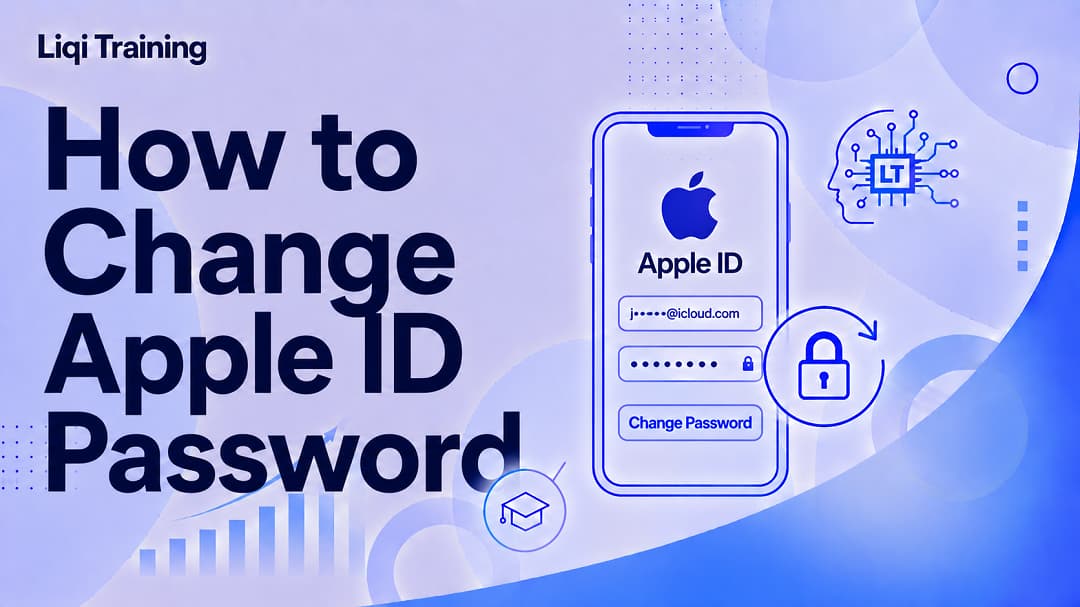
You can change your Apple ID password directly from your iPhone, iPad, or Mac in just a few minutes. Updating your password helps protect personal information stored in iCloud and other Apple services. If you’ve forgotten your password, Apple provides secure recovery options to regain access to your account. After changing your password, you may need to sign in again on some Apple devices and services. Using a strong, unique password and two-factor authentication significantly improves your account security.
How to Change Apple ID Password on iPhone, iPad, or Mac
Your Apple Account is the key to nearly every Apple service you use. It gives you access to iCloud, the App Store, Apple Music, Apple TV+, FaceTime, Messages, backups, photos, and much more.
Because your Apple Account contains sensitive personal and financial information, keeping your password secure is essential. Whether you want to improve your account security, believe your password has been compromised, or simply need to update an old password, Apple makes the process straightforward across all of its devices.
This guide explains how to change your Apple Account password on an iPhone, iPad, or Mac, what to do if you’ve forgotten it, and how to avoid common security mistakes.
Quick Answer
If you’re short on time, here’s the fastest way to change your Apple Account password:
On iPhone or iPad
- Open Settings.
- Tap your name.
- Select Sign-In & Security.
- Tap Change Password.
- Verify your identity using your device passcode, Face ID, or Touch ID.
- Enter a new password.
- Confirm the new password.
- Tap Change.
On Mac
- Open System Settings.
- Click your Apple Account.
- Select Sign-In & Security.
- Click Change Password.
- Verify your identity.
- Enter and confirm your new password.
Why You Should Change Your Apple Account Password
Changing your password isn’t something you should do only after a security incident. Regular updates help reduce the risk of unauthorized access and keep your information better protected.
Consider changing your password if:
- You suspect someone knows your password.
- You received an unexpected security alert.
- You reused the same password on another website that experienced a data breach.
- Your password is weak or easy to guess.
- You haven’t changed it in several years.
- You’re sharing a device that others can access.
Keeping your password current is one of the simplest ways to improve your digital security.
Before You Begin
Before changing your password, make sure you have the following:
- Your iPhone, iPad, or Mac.
- A stable internet connection.
- Your device passcode.
- Face ID or Touch ID enabled (if supported).
- Access to your trusted Apple device.
If two-factor authentication is enabled, Apple may ask you to verify your identity before allowing the password change.
How to Change Your Apple Account Password on iPhone
Changing your password on an iPhone takes only a few minutes.
Step 1
Open the Settings app.
Step 2
Tap your name at the top of the screen.
This opens your Apple Account settings.
Step 3
Select Sign-In & Security.
Here you’ll find your password, security settings, trusted phone numbers, and sign-in options.
Step 4
Tap Change Password.
Apple will ask you to verify your identity.
Depending on your device, you may use:
- Face ID
- Touch ID
- Device passcode
Step 5
Enter your new password.
Choose a password that’s:
- Difficult to guess
- Unique
- At least eight characters long
- A combination of uppercase letters, lowercase letters, and numbers
Avoid using names, birthdays, or common words.
Step 6
Confirm your new password.
Tap Change.
Your Apple Account password is updated immediately.
Some Apple services may ask you to sign in again using the new password.
How to Change Your Apple Account Password on iPad
The process on an iPad is almost identical.
Step 1
Open Settings.
Step 2
Tap your name.
Step 3
Choose Sign-In & Security.
Step 4
Tap Change Password.
Step 5
Verify your identity.
Step 6
Enter and confirm your new password.
Step 7
Save the changes.
Your updated password will be used across compatible Apple services linked to your account.
How to Change Your Apple Account Password on Mac
Mac users can also update their password without visiting Apple’s website.
Step 1
Open System Settings.
Step 2
Click your Apple Account.
Step 3
Choose Sign-In & Security.
Step 4
Click Change Password.
Step 5
Enter your Mac login password if requested.
Step 6
Type your new Apple Account password.
Step 7
Confirm the password.
Step 8
Click Change Password.
Your changes take effect immediately.
What Happens After You Change Your Password?
Once your password has been updated, Apple automatically secures your account using the new credentials.
You may notice a few changes afterward.
For example:
- Some Apple devices may ask you to sign in again.
- You may need to re-enter your password in iCloud settings.
- Certain Apple services may briefly require verification.
- Devices signed in with your Apple Account will continue syncing after authentication is complete.
This process helps ensure only authorized users can access your account.
How Often Should You Change Your Password?
There is no fixed schedule, but security experts generally recommend updating important account passwords whenever there is reason to believe they may have been exposed.
You should also consider changing your password if:
- You receive unexpected sign-in notifications.
- Your password appears in a known data breach.
- You shared your password with someone temporarily.
- You notice unfamiliar devices connected to your account.
If your current password remains strong, unique, and uncompromised, frequent changes may not be necessary. Instead, focus on maintaining good password hygiene and enabling two-factor authentication.
How to Reset a Forgotten Apple Account Password
If you can’t remember your Apple Account password, you don’t need to create a new account. Apple provides several secure recovery options that allow you to regain access.
Reset Using Your iPhone or iPad
If you’re already signed in on a trusted device:
- Open Settings.
- Tap your name.
- Select Sign-In & Security.
- Tap Change Password.
- Verify your identity using Face ID, Touch ID, or your device passcode.
- Create and confirm a new password.
This is typically the fastest recovery method.
Reset Using Your Mac
If you’re signed in on a trusted Mac:
- Open System Settings.
- Click your Apple Account.
- Select Sign-In & Security.
- Click Change Password.
- Verify your identity.
- Create a new password.
Reset Through Apple’s Account Recovery
If you don’t have access to a trusted device, Apple provides an account recovery process.
Depending on your security settings, you may be asked to verify your identity using trusted phone numbers, email addresses, or other recovery methods before resetting your password.
Because recovery is designed to protect your account, it may take some time to complete in certain situations.
Why Your Password Change Might Fail
Most password changes are completed without issues, but several common factors can prevent the process from succeeding.
Weak Password
Apple requires passwords that meet minimum security requirements.
Avoid using:
- Your name
- Birthdays
- Sequential numbers
- Common dictionary words
- Passwords you’ve recently used
A stronger password improves account security and reduces the likelihood of unauthorized access.
No Internet Connection
Your device must communicate with Apple’s servers before updating your password.
If you’re experiencing connection issues:
- Connect to a reliable Wi-Fi network.
- Disable Airplane Mode.
- Try again after restoring internet access.
Outdated Software
Older versions of iOS, iPadOS, or macOS may occasionally cause account management issues.
Updating your device can resolve compatibility problems and improve overall security.
Verification Problems
If Apple cannot verify your identity, check that:
- Your trusted phone number is correct.
- You’re using a trusted device.
- Your device’s date and time are accurate.
- Two-factor authentication prompts are being received.
How Two-Factor Authentication Protects Your Account
Two-factor authentication adds another layer of protection beyond your password.
When enabled, signing in requires:
- Your password.
- A verification code sent to a trusted device or trusted phone number.
Even if someone learns your password, they cannot access your Apple Account without the second verification step.
For most users, enabling two-factor authentication is one of the best ways to improve account security.
Tips for Creating a Strong Apple Account Password
A secure password is your first line of defense against unauthorized access.
Consider these best practices:
- Use at least eight characters.
- Combine uppercase and lowercase letters.
- Include numbers.
- Add special characters where appropriate.
- Avoid personal information such as birthdays or names.
- Don’t reuse passwords from other websites.
- Consider using a trusted password manager to generate and store complex passwords.
The stronger and more unique your password is, the harder it becomes for attackers to guess or compromise it.
Additional Security Tips
Changing your password is only one part of protecting your Apple Account.
You should also:
- Review devices signed in to your account regularly.
- Remove devices you no longer use.
- Keep your trusted phone number up to date.
- Enable automatic software updates.
- Be cautious of phishing emails and fake login pages.
- Never share your password with anyone.
Practicing good security habits helps keep your personal information, photos, documents, and purchases protected.
Frequently Asked Questions
Will changing my Apple Account password sign me out of my devices?
Some devices and Apple services may ask you to sign in again after changing your password. This is a normal security measure to verify your identity.
Can I use the same password again?
Apple may prevent you from reusing a recently used password. Creating a new, unique password is recommended for better security.
How long does it take to change an Apple Account password?
In most cases, changing your password takes only a few minutes, provided you have access to a trusted device and can verify your identity.
What should I do if I don’t receive a verification code?
First, make sure your trusted phone number is correct and your device has an internet connection. If the problem continues, check whether your trusted devices are able to receive verification requests.
Can I change my password without a trusted device?
Yes. Apple offers account recovery options for users who no longer have access to a trusted device. Additional identity verification may be required before your password can be reset.
Does changing my password affect iCloud?
Yes. Because your Apple Account is used to access iCloud, you may need to sign in again on some devices after updating your password. Once authenticated, your data will continue syncing normally.
Conclusion
Your Apple Account is the foundation of your Apple ecosystem, connecting your iPhone, iPad, Mac, iCloud, App Store purchases, and many other services. Keeping your password secure is one of the most effective ways to protect your personal information and maintain uninterrupted access to your account.
Whether you’re updating an old password, responding to a security concern, or recovering access after forgetting your credentials, Apple provides straightforward tools to manage your account safely. By using a strong, unique password, enabling two-factor authentication, and regularly reviewing your account settings, you can significantly reduce the risk of unauthorized access.
Taking a few minutes to strengthen your account today can help protect your data, purchases, and devices well into the future.
ADVERTISEMENT