A laptop can be lost. A hard drive can fail. A phone can break. A folder can be accidentally deleted.
The problem with keeping important files on only one device is that the device becomes part of the risk.
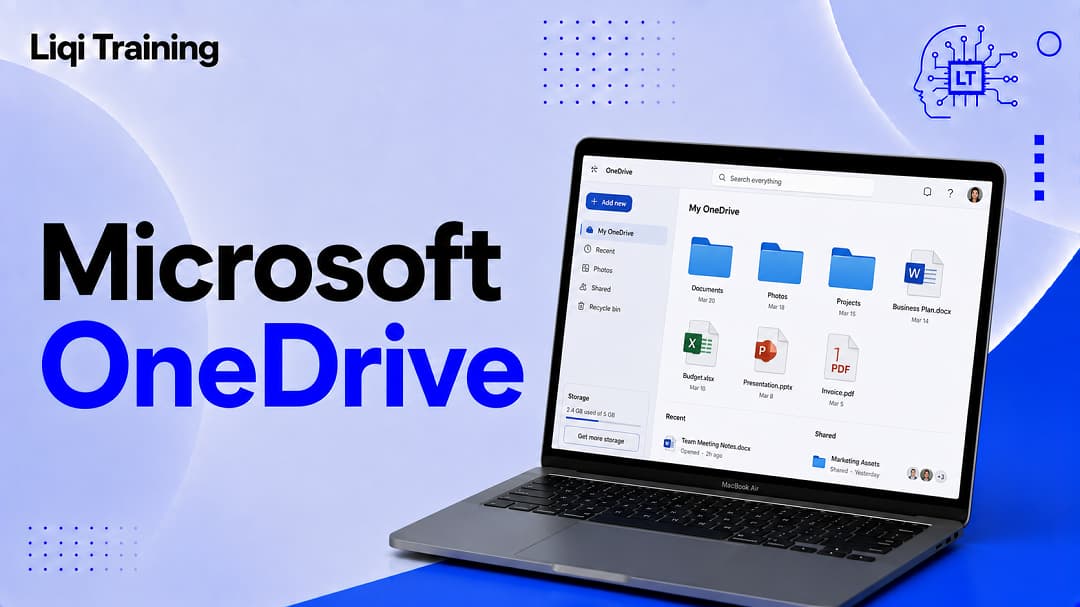
Microsoft OneDrive is designed to move files and photos into the cloud so they can remain accessible across devices and can be synchronized between your computer and Microsoft’s online storage. Microsoft describes OneDrive as a cloud storage service that lets users store, access, edit, share, and sync files from different devices.
That sounds similar to simply putting files on an online drive, but OneDrive does considerably more than that. It can integrate with Windows File Explorer, macOS Finder, Microsoft 365 applications, mobile devices, and Microsoft’s wider collaboration ecosystem.
For someone new to Microsoft’s services, however, OneDrive can be confusing. Is it cloud storage or backup? Does moving a file into the OneDrive folder upload it? What happens when a file is deleted? Why does a file sometimes appear on the computer without actually taking up disk space? And how is OneDrive different from SharePoint?
Those questions become much easier to answer once you understand how OneDrive treats the relationship between your device and the cloud.
Key Notes:
OneDrive is Microsoft’s cloud storage and file synchronization service. It allows files to be stored online and accessed from supported computers, phones, tablets, and web browsers.
A few distinctions are particularly important:
- Cloud storage means your files can be stored online rather than only on your physical device.
- Sync keeps supported files and folders aligned between your device and OneDrive.
- Backup can protect supported folders and photos by copying them into OneDrive.
- Sharing lets you give other people access to selected files or folders.
- Files On-Demand lets you see cloud files in File Explorer without necessarily storing all of their contents locally.
- A free Microsoft account currently includes 5 GB of OneDrive storage.
- OneDrive is primarily designed around an individual’s files, while SharePoint is generally better suited to shared organizational content and team collaboration.
The most useful way to think about OneDrive is this: it creates a cloud-based copy and synchronization layer around your files, while also providing tools for access, sharing, collaboration, and recovery.
Imagine Your Files Without OneDrive
Consider a typical laptop.
You might have tax documents in Documents, vacation photos in Pictures, work files on the desktop, and several folders containing years of personal projects.
Without cloud synchronization, those files primarily live on the computer’s storage drive.
If the laptop stops working, accessing those files may become difficult. If the laptop is stolen, the files could be inaccessible or lost unless another copy exists.
You could manually copy everything to an external hard drive, but then you have another task: remembering to update that copy whenever the originals change.
OneDrive approaches the problem differently.
Once files or supported folders are configured for OneDrive, changes can synchronize with the cloud. Microsoft says that when a file or folder in a synced OneDrive location is added, changed, or deleted, the corresponding change is reflected between the computer and OneDrive online.
That synchronization is one of the central ideas behind the service.
OneDrive Is More Than an Online Folder
It is tempting to describe OneDrive as Microsoft’s version of an online hard drive.
That description is useful for beginners, but incomplete.
OneDrive can connect the same files across a Windows PC, Mac, mobile device, and web browser. Microsoft says users can access OneDrive through supported devices and the web, while the desktop application integrates files into Windows File Explorer or macOS Finder.
Imagine editing a document on your laptop.
After the change synchronizes, you can access the updated file through OneDrive elsewhere rather than having to manually copy the document to another device.
The same principle works in reverse. A file uploaded through the OneDrive website can become available through your synchronized OneDrive folder.
This is why OneDrive is best understood as a connected file environment, rather than simply a website where you upload files.
How OneDrive Sync Actually Works
Synchronization is the mechanism that connects your device with the cloud.
When you sign in to OneDrive and configure synchronization, a OneDrive folder appears on your computer. Microsoft explains that synced files can be accessed through File Explorer on Windows or Finder on Mac.
You can then work with those files much like other files on your computer.
Create a document in the synchronized folder and OneDrive can upload it.
Edit an existing document and the changes can synchronize.
Rename or move a file within OneDrive and the change can be reflected online.
The important word is sync.
Synchronization means changes can travel between locations. It is therefore different from creating one permanent backup copy and never changing it.
That distinction becomes particularly important when discussing deletion.
Does OneDrive Back Up Your Files?
Yes, but the word backup needs some qualification.
OneDrive provides backup capabilities for supported folders and devices. Microsoft’s current consumer documentation says OneDrive can back up Windows PC folders and photos from iOS and Android devices, while Microsoft’s Windows integration can protect standard folders such as Desktop, Documents, and Pictures.
But OneDrive’s synchronization behavior means it should not automatically be treated as an independent archival backup of everything you’ve ever owned.
If a synced file is deleted, that deletion can synchronize too.
Microsoft provides a recycle bin and recovery features, which can help recover accidentally deleted content.
For especially important data, maintaining an additional backup strategy can therefore still make sense.
Think of OneDrive as providing cloud storage, synchronization, and useful recovery capabilities, rather than assuming that it replaces every type of backup system.
What Happens When You Delete a OneDrive File?
This is one of the most important things for new users to understand.
If you delete a file from a synchronized OneDrive folder, the deletion can synchronize with the cloud.
That does not necessarily mean the file disappears forever.
OneDrive provides a recycle bin from which deleted files can be recovered, subject to Microsoft’s retention rules and the type of account involved. Microsoft specifically notes that deleted files can be restored from the OneDrive recycle bin.
The lesson is simple: sync is not the same as one-way backup.
If you want a file to remain permanently archived regardless of what happens in your synchronized folder, you should consider an additional backup approach.
Files On-Demand: Why OneDrive Doesn’t Fill Your Hard Drive
OneDrive’s Files On-Demand feature addresses one of the biggest problems with cloud synchronization: storage capacity.
Imagine having 500 GB of files in OneDrive but only 256 GB of free space on your laptop.
You don’t necessarily want every file downloaded to the laptop.
Files On-Demand allows supported files to appear in File Explorer without requiring all of their contents to occupy local disk space. Microsoft says online-only files don’t take up space on the computer until they are opened or otherwise made available locally.
You will typically see different status indicators for OneDrive files.
An online-only file exists in the cloud and can be downloaded when you need it.
A locally available file has been downloaded and can be used offline.
A file marked Always keep on this device remains downloaded so that it is available even without an internet connection.
This gives you control over the trade-off between cloud access and local storage.
For a laptop with limited storage, Files On-Demand can be particularly useful because you can keep a large cloud library visible without downloading everything.
What Happens When You Open an Online-Only File?
Suppose a file appears in your OneDrive folder with an online-only status.
You can still see the file’s name and other information, but the full contents are not necessarily stored locally.
When you open it while connected to the internet, OneDrive can download the file so you can work with it. Microsoft explains that opening an online-only file downloads it to the device and makes it locally available.
If you later need to recover local disk space, you can use Free up space to return the file to an online-only state.
This makes OneDrive behave differently from a conventional folder stored entirely on your hard drive.
Your File Explorer can show you a much larger library than the physical storage capacity of the computer might otherwise allow.
How Much OneDrive Storage Do You Get?
Microsoft currently provides 5 GB of OneDrive cloud storage with a free Microsoft account.
That space can be used for files, photographs, and other supported content.
For users who need more capacity, Microsoft offers paid plans.
Microsoft’s OneDrive pricing page currently lists Microsoft 365 Basic at $24.93 per year or $2.44 per month, with 100 GB of cloud storage. Microsoft 365 Personal is currently listed at $99.91 per year or $9.93 per month, with 1 TB of storage for one person.
Prices and plan benefits can change, so these figures should be checked against Microsoft’s current pricing page before publication updates or purchasing decisions.
The important distinction is that OneDrive storage can be purchased on its own or included as part of a broader Microsoft 365 subscription.
OneDrive and Microsoft 365: Why Are They Connected?
OneDrive is deeply integrated with Microsoft 365.
Microsoft’s productivity ecosystem includes applications such as Word, Excel, PowerPoint, and OneNote, and OneDrive provides cloud storage that allows users to save and access supported documents across devices.
This is one reason OneDrive becomes particularly useful when using Microsoft’s productivity applications.
For example, a Word document stored in OneDrive can be opened on another device rather than being trapped on the computer where it was originally created.
If you’re building a broader understanding of Microsoft’s ecosystem, the article Microsoft 365 Guide: Features, Pricing, Login, Apps, and Benefits Explained is a natural companion to this topic.
The relationship can be summarized simply:
Microsoft 365 provides productivity applications and services. OneDrive provides cloud storage and synchronization for files used within that ecosystem.
The two are closely connected, but they are not the same product.
OneDrive vs. SharePoint: Which One Should You Use?
This is where many Microsoft users become confused.
OneDrive and SharePoint both store files in Microsoft’s cloud, but their intended use is different.
Microsoft’s own guidance says OneDrive is designed primarily for individual use, with occasional file sharing, while SharePoint team sites are designed for regular collaboration around shared files and content.
A useful example is a marketing manager working on a private draft campaign.
The manager could keep the draft in OneDrive and share it with a colleague when feedback is needed.
Now imagine a department with 20 employees who all need ongoing access to the campaign’s final assets, documents, and project files.
A SharePoint team site is more appropriate because the files have shared ownership and are intended for ongoing collaboration.
This distinction becomes particularly important when using Microsoft Teams.
OneDrive and Microsoft Teams: How They Work Together
Microsoft Teams and OneDrive are closely connected, but they solve different problems.
Teams is primarily a communication and collaboration environment. OneDrive is primarily an individual’s cloud file-storage and synchronization space.
If you’re already familiar with Microsoft Teams: How It Works, Features, Meetings, and Productivity Tips, the easiest distinction is this:
Teams organizes conversations and teamwork. OneDrive manages an individual’s cloud files.
When collaboration becomes team-wide, SharePoint often enters the picture.
Microsoft explains that when a Microsoft 365 group is created, including through the creation of a Microsoft Team, a SharePoint team site can be created for that group.
This explains why files shared in Teams can behave differently from files stored privately in your OneDrive.
The applications are interconnected rather than isolated.
How to Share a File From OneDrive
OneDrive allows you to share individual files and folders rather than giving someone unrestricted access to your entire storage.
Microsoft says users can choose how files are shared, including creating links that can be forwarded or restricting sharing to specific people.
The general process is straightforward.
Select the file or folder you want to share, choose the sharing option, and configure the access level available to you.
Depending on your account and subscription, sharing controls can include permissions such as viewing or editing.
The important step is checking the permission before sending the link.
A link that can be freely forwarded is fundamentally different from access restricted to specific people.
For confidential documents, use the most restrictive practical sharing option.
Can Multiple People Edit a OneDrive File?
Yes.
OneDrive supports collaboration on Microsoft 365 documents, allowing multiple people to work on supported files. Microsoft describes OneDrive as supporting real-time collaboration on Microsoft 365 documents.
This can be much more efficient than emailing different versions of the same document back and forth.
Instead of:
Report-final.docx
followed by:
Report-final-2.docx
and then:
Report-final-2-reviewed.docx
the team can collaborate around the same cloud-hosted document where supported.
This approach also reduces confusion about which version is the latest.
For business-wide or long-term collaborative content, however, SharePoint may be the more appropriate location because it is designed for shared ownership and organizational collaboration.
OneDrive on Windows
OneDrive is tightly integrated with Windows.
After signing in and completing setup, OneDrive files can appear in File Explorer. Microsoft says users can select which OneDrive folders synchronize to the computer and can enable backup for important Windows folders.
This means you can interact with OneDrive without constantly opening a browser.
For many Windows users, the OneDrive folder becomes part of their normal file-management routine.
The cloud icon in the Windows notification area can also provide access to OneDrive’s status and settings.
Files On-Demand can then be used to control how much of your cloud library is actually stored on the computer.
OneDrive on Mac
OneDrive is not limited to Windows.
Microsoft provides a OneDrive application for macOS, allowing users to synchronize and organize cloud files through Finder. Microsoft’s current OneDrive documentation lists Mac alongside Windows, iPhone, iPad, and Android as supported device platforms.
This makes OneDrive useful for people who use a Mac but also rely on Microsoft’s cloud and productivity ecosystem.
The underlying idea remains the same: files can be stored in OneDrive and synchronized between supported devices.
If you’re using a MacBook, OneDrive can therefore sit alongside Apple’s own cloud-storage ecosystem rather than requiring you to abandon the Microsoft services you already use.
OneDrive on iPhone and Android
The OneDrive mobile application allows users to access files and photos from mobile devices.
Microsoft says OneDrive supports mobile access on iOS and Android, including photo backup capabilities.
This is useful when your phone contains photos or documents that you want available elsewhere.
For example, a photograph taken on a phone can be backed up to OneDrive and then accessed from a computer.
That removes the need to manually connect the phone to a laptop every time you want to transfer selected files.
Mobile access also means OneDrive can function as a central place to retrieve documents when you’re away from your main computer.
What Is OneDrive Personal Vault?
Personal Vault is a protected area within OneDrive designed for more sensitive files.
Microsoft says Personal Vault uses identity verification and provides an additional security layer for files stored there.
The idea is not that every file needs to be stored there.
Instead, it can be used for information that deserves an additional layer of protection.
Examples could include copies of important personal documents or other sensitive records.
The exact Personal Vault capabilities and limits depend on the user’s OneDrive plan. Microsoft’s current South African pricing page, for example, shows different Personal Vault capabilities across its plans.
How Secure Is OneDrive?
OneDrive includes several security and recovery features, but security should not be reduced to a single statement such as “your files are completely safe.”
Microsoft currently highlights features including Personal Vault, ransomware detection and recovery for supported Microsoft 365 subscriptions, secure sharing controls, and file recovery capabilities.
The user’s own account security is equally important.
A strong password, multifactor authentication, careful sharing permissions, and awareness of phishing attempts can all reduce the risk of unauthorized access.
Sharing is particularly important.
If you give someone access to a document, that access should be intentional. Don’t assume that because a file is inside your OneDrive, nobody else can see it after you’ve shared it.
Microsoft states that OneDrive files are private by default until you choose to share them, although organizational administrators and account policies can affect work or school environments.
OneDrive Ransomware Protection and File Recovery
Cloud storage can also provide a layer of resilience against certain forms of data loss.
Microsoft says eligible Microsoft 365 subscriptions include ransomware detection and recovery features for OneDrive.
The purpose is important: if files are affected by a malicious attack, recovery tools can potentially help restore files to an earlier state.
That is different from saying OneDrive makes a device immune to ransomware.
A compromised account or compromised device can still create serious security problems.
Cloud recovery should therefore be viewed as one component of a broader security strategy.
OneDrive Version History
Version history can be useful when a document changes and you later need an earlier version.
Instead of having to maintain numerous manually named copies, supported OneDrive files can retain previous versions that can be restored where the feature is available.
Microsoft’s current OneDrive plan information lists version history among its features.
This is especially useful when working collaboratively.
If a document is accidentally changed or important content is overwritten, an earlier version can provide a way back.
Version history is therefore another reason cloud-based document storage can be more practical than maintaining a series of manually duplicated files.
OneDrive vs. Google Drive
OneDrive is often compared with Google Drive because both provide cloud file storage and sharing.
The basic concept is similar: users can store files online, access them across devices, share them, and collaborate on supported documents.
The bigger difference for many users is ecosystem integration.
OneDrive is tightly integrated with Microsoft’s ecosystem, including Windows and Microsoft 365 applications.
Google Drive is closely integrated with Google’s own productivity ecosystem.
For someone who already spends most of their time in Microsoft Word, Excel, PowerPoint, Outlook, Teams, and Windows, OneDrive can provide a more integrated workflow.
The better choice depends on the applications, devices, collaboration environment, storage requirements, and services you already use.
OneDrive vs. iCloud
Apple users may also compare OneDrive with iCloud.
iCloud is deeply integrated into Apple’s ecosystem, while OneDrive is designed to work across Windows, macOS, iOS, Android, and Microsoft’s web services. Microsoft’s current OneDrive platform information lists support across these major device categories.
If you use a MacBook and an iPhone but also rely heavily on Microsoft 365, OneDrive can be useful for your Microsoft files even if iCloud remains your primary Apple ecosystem storage service.
There is no requirement that one cloud service must replace every other cloud service.
Is OneDrive Worth Using?
For someone already using Microsoft’s ecosystem, OneDrive can be particularly useful.
It removes some of the friction involved in moving files between computers, provides access through multiple devices, supports sharing and collaboration, and offers storage and recovery features.
The value becomes even clearer when you regularly use Microsoft 365 applications.
A document saved to OneDrive can remain available across supported devices instead of being tied to one computer.
For users with limited local storage, Files On-Demand can also make a large cloud library practical without downloading everything.
However, OneDrive is not necessarily the only storage service you need.
If you maintain large media archives, complex organizational file repositories, or highly sensitive business data, your requirements may call for additional storage, backup, security, or document-management solutions.
What OneDrive Should You Use for Personal Files?
OneDrive is well suited to files that belong primarily to you.
That can include personal documents, photographs, drafts, school assignments, work-in-progress files, and other content that you control.
Microsoft’s own guidance describes OneDrive as being intended for individual use, while SharePoint team sites are better suited to content with shared ownership and ongoing team collaboration.
A useful rule is:
If the file belongs primarily to you, start with OneDrive.
If the file belongs to a team or organization, consider SharePoint.
There are exceptions, but this distinction provides a useful starting point.
What OneDrive Is Not
Understanding what OneDrive does not do is just as important as understanding its features.
OneDrive is not a physical external hard drive.
It is not a replacement for every possible backup strategy.
It is not the same thing as SharePoint.
It is not Microsoft 365 itself.
And it is not simply an online folder disconnected from your computer.
OneDrive sits between several concepts: cloud storage, synchronization, file access, sharing, collaboration, and recovery.
That combination is what makes it useful.
A Simple OneDrive Setup for Beginners
If you’ve never used OneDrive before, you don’t need to configure every feature immediately.
Start by signing in with your Microsoft account.
Then decide which files or folders you actually want synchronized or backed up.
On Windows, review the OneDrive folder and Files On-Demand settings so you understand which files are stored locally and which are cloud-only. Microsoft provides controls for selecting folders and changing whether files remain available on the device.
Next, review your sharing settings.
Finally, check your available storage.
This basic setup gives you a much clearer picture of how OneDrive is interacting with your computer before you begin moving large amounts of data into the service.
Common OneDrive Mistakes to Avoid
OneDrive is relatively straightforward once its synchronization model is understood, but a few mistakes can create problems.
The first is assuming that synchronization means an unchanging backup. A deletion can synchronize too, although Microsoft’s recovery tools may provide ways to restore deleted or previous content.
The second is downloading everything unnecessarily. Files On-Demand exists specifically to let users keep cloud files available without consuming local storage.
The third is sharing files without checking permissions.
The fourth is using OneDrive as the default location for every team-owned document. Microsoft recommends SharePoint team sites for shared organizational content and regular collaboration.
Finally, don’t ignore account security. Cloud storage is only as secure as the account and access controls protecting it.
Conclusion On What Is Microsoft OneDrive?
Microsoft OneDrive is a cloud storage and synchronization service that connects your files across supported devices and Microsoft’s online services.
Its usefulness comes from the combination of several capabilities rather than from storage alone.
You can store files online, synchronize them with a computer, access them through a browser or mobile application, share selected content with other people, collaborate on supported Microsoft 365 documents, back up supported folders and photos, and use recovery features when files are accidentally deleted or affected by certain problems.
The most important concept to remember is the difference between syncing and backing up.
Sync keeps locations aligned. Backup is intended to provide another copy for recovery. OneDrive offers both synchronization and backup-related capabilities, but its synchronization behavior means it should not automatically be treated as a complete replacement for every independent backup strategy.
OneDrive also becomes much easier to understand when placed within Microsoft’s larger ecosystem.
Microsoft 365 provides productivity applications and services.
Microsoft Teams supports communication and teamwork.
SharePoint provides collaborative organizational content management.
OneDrive gives individuals cloud-based file storage, synchronization, sharing, and access.
And Microsoft Copilot can provide AI assistance in supported OneDrive and Microsoft 365 experiences. Microsoft’s current OneDrive documentation includes Copilot features such as summarizing files and asking questions about file content in supported experiences.
Once those distinctions are clear, OneDrive stops looking like another confusing Microsoft product and becomes what it is fundamentally designed to be: a cloud-based home for files that helps keep them available, synchronized, shareable, and recoverable across the devices and services you use.
ADVERTISEMENT