

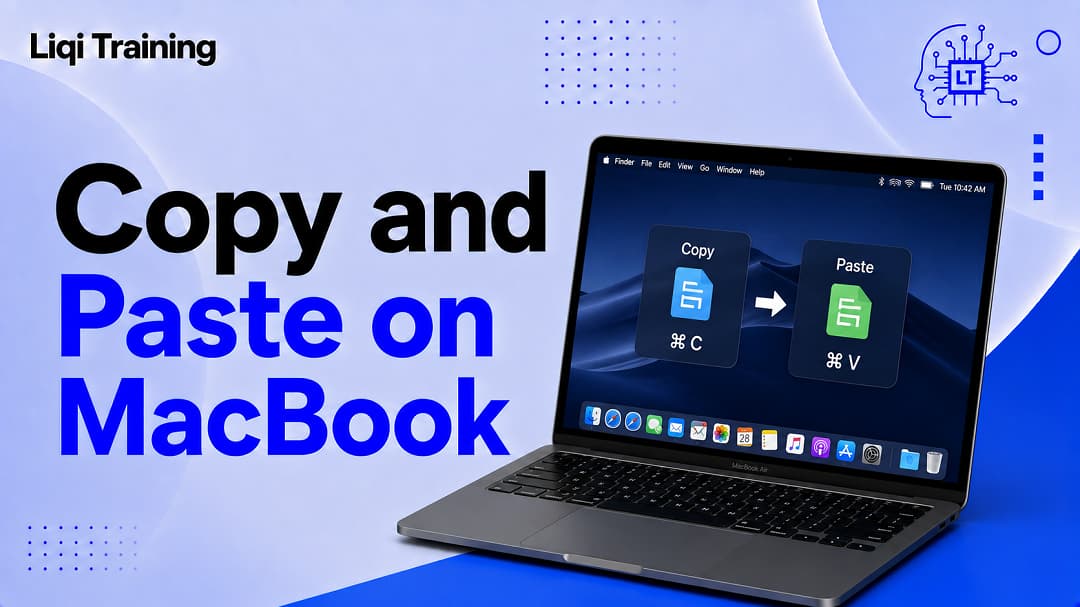
Learning how to Copy and Paste on MacBook is one of the first skills worth mastering when switching to macOS. The basic process is simple, but MacBook uses the Command (⌘) key for many shortcuts that Windows users may expect to perform with Ctrl.
The most important shortcuts are Command-C to copy, Command-X to cut, and Command-V to paste. These commands work across many Mac applications, although individual apps can determine which content can be copied, cut, or pasted. Apple also provides menu and Control-click alternatives when you prefer not to use keyboard shortcuts.
Copying and pasting is not limited to ordinary text. Depending on the application and the item you are working with, you can copy images, links, files, folders, formatted text, and other content. You can also use macOS features such as Paste and Match Style, drag and drop, and Universal Clipboard to move information between compatible Apple devices.
Key Notes:
- Press Command-C to copy selected content.
- Press Command-X to cut selected content.
- Press Command-V to paste copied or cut content.
- Use Option-Shift-Command-V for Paste and Match Style where supported.
- In Finder, Command-C followed by Option-Command-V can move copied files or folders to another location.
- You can also copy and paste using the Edit menu or Control-click/right-click menu.
- Dragging an item while holding Option creates a copy rather than moving it.
- Universal Clipboard can allow compatible Apple devices to share copied content when the required settings are enabled.
- If Paste is unavailable or dimmed, the destination application may not support that type of content.
The basic copy and paste shortcuts on MacBook
The standard Copy and Paste on MacBook shortcuts are easy to remember:
| Action | MacBook shortcut |
|---|---|
| Copy | Command-C |
| Cut | Command-X |
| Paste | Command-V |
| Undo | Command-Z |
| Paste and Match Style | Option-Shift-Command-V |
Apple confirms Command-C copies a selected item, Command-X cuts it, and Command-V pastes the item at the insertion point.
The Command key (⌘) is the key that makes these shortcuts different from the familiar Windows combinations. If you previously used a Windows PC, think of Command as the primary shortcut key for many everyday Mac operations.
For example, if you want to copy a sentence from a webpage and paste it into a document:
- Select the sentence.
- Press Command-C.
- Open the document.
- Click where you want the sentence to appear.
- Press Command-V.
The original text remains where it was because copying creates a copy rather than removing the original.
How to copy text on a MacBook
To copy text, you first need to select it.
In a document, webpage, email, message, or other application, place the pointer at the beginning of the text you want to copy. Select the required words or paragraphs using the trackpad, mouse, or keyboard.
Once the text is highlighted, press Command-C.
The selected text is placed on the macOS Clipboard. You can then move to another location and press Command-V to insert it. Apple describes this as the standard process for copying and pasting text and other supported items.
The original selection is not deleted.
This distinction matters because Copy and Cut perform different jobs. Copy leaves the original content in place, while Cut removes the selected content from its original location when the application supports that operation.
How to paste text on MacBook
After copying text, click where you want it to appear and press Command-V.
The insertion point determines where the copied content will be placed. If you are working in a document, for example, click between the words or paragraphs where you want the new material inserted.
You can also use Edit > Paste from the macOS menu bar or Control-click the destination and choose Paste. Apple lists both methods as alternatives to the keyboard shortcut.
If Paste appears dimmed or is unavailable, the application may not allow that type of content to be inserted at the selected location. Apple notes that individual apps determine what can be cut, copied, or pasted and where those actions are permitted.
How to copy and paste on MacBook without a keyboard
Keyboard shortcuts are fast, but you do not have to use them.
Select the text or item you want to copy, then Control-click it. On a MacBook trackpad, Control-click provides the equivalent of a contextual menu, assuming the application supports the action.
Choose Copy.
Move to the destination, Control-click again, and choose Paste. Apple documents Control-click as an alternative method for copying and pasting on Mac.
You can also use the menu bar. Select the content, choose Edit > Copy, move to the destination, then select Edit > Paste.
This approach can be useful when you are still learning Mac keyboard shortcuts or when a particular application makes the relevant commands easier to find through its menus.
How to copy and paste with a MacBook trackpad
The MacBook trackpad provides several ways to select and move content.
For text, drag across the words you want to select. Once the text is highlighted, use Command-C and then Command-V at the destination.
For files and folders, you can also use drag and drop. Apple says dragging and dropping can move or copy files and folders, add an image to an email, or move text within a document.
To copy an item through drag and drop rather than move it, hold the Option key while dragging. Apple documents this as the method for copying an item during a drag-and-drop operation.
This is particularly useful when you want to duplicate a file without creating a separate copy through a menu command.
How to copy and paste files on MacBook
Copying files works slightly differently from copying text because Finder manages files and folders.
Open Finder and locate the file or folder you want to copy.
Select it and press Command-C.
Open the destination folder and press Command-V.
Finder creates a copy in the destination while leaving the original in its original location.
You can also Control-click the file, choose Copy, navigate to the destination, Control-click again, and choose Paste Item where available.
The same general process applies to folders, provided you have permission to access and modify the relevant locations.
How to move files using copy and paste on MacBook
Mac users coming from Windows sometimes expect Command-X followed by Command-V to work for files in exactly the same way as Ctrl-X and Ctrl-V.
Finder handles file movement differently from ordinary text editing.
One useful keyboard method is to select the file, press Command-C, navigate to the destination folder, and then press Option-Command-V. Apple’s Mac keyboard documentation identifies Option-Command-V as the command for moving files in the Clipboard from their original location to the current location.
This is different from ordinary Command-V, which pastes a copy.
The distinction is important:
Command-C + Command-V: creates a copy.
Command-C + Option-Command-V: moves the file to the destination.
If you want to keep the original file where it is, use ordinary Command-V.
How to copy an image on MacBook
You can copy images in many applications using the same basic process.
Select the image, then press Command-C. Move to the application or document where you want the image to appear and press Command-V.
Whether this works depends on the application and the way the image is presented. Apple notes that apps determine what can be copied and pasted and where those operations are available.
For example, copying an image from a webpage and pasting it into an application that supports image insertion may work directly. In another application, you may instead need to save the image as a file first.
If you are working with screenshots, macOS also provides built-in screenshot tools. For more information, see How to Screenshot on MacBook Air: Keyboard Shortcuts and Screen Capture Options.
How to copy and paste a link on MacBook
Web links can generally be copied just like other selectable content.
If you are copying visible text that contains a link, select the text and press Command-C. You can then paste it into a compatible document, message, or other application.
If you need the actual URL rather than the displayed text, the browser’s link-copying option may be more appropriate. The exact command varies between browsers and applications.
Once the link or URL is on the Clipboard, Command-V pastes it into a compatible destination.
This can be useful when collecting research, sharing webpages, or moving URLs between browser tabs and documents.
How to paste without formatting on MacBook
One of the most common copy-and-paste problems is unwanted formatting.
Suppose you copy text from a webpage and paste it into a document. The text may arrive with a different font, size, color, or other formatting.
macOS provides Paste and Match Style, which makes the pasted content follow the formatting of the destination text where supported.
Apple identifies the shortcut as:
Option-Shift-Command-V
This pastes the Clipboard contents while matching the style of the surrounding content.
You can also look for Edit > Paste and Match Style in applications that support the command.
The exact behavior can vary between applications, so if the shortcut is unavailable, check the application’s Edit menu for its available paste options.
Copy and paste versus cut and paste
Copying and cutting are not interchangeable.
Copy creates a duplicate of the selected content in the Clipboard while leaving the original intact.
Cut removes the selected content from its current location when the application supports cutting and places it in the Clipboard so it can be pasted elsewhere.
The shortcuts are:
Command-C: Copy
Command-X: Cut
Command-V: Paste
Apple notes that not every item can be cut. For example, certain files and folders in Finder may not offer the same Cut behavior available for text.
For Finder files, using Command-C followed by Option-Command-V provides a dedicated way to move the selected files to another location.
Understanding that distinction helps prevent accidentally moving or duplicating important files.
How to undo a paste on MacBook
If you paste something in the wrong place, you usually do not have to manually remove it.
Press Command-Z to undo the previous action when the application supports the standard undo command. Apple specifically documents Command-Z as the shortcut for undoing an unwanted paste.
You can also choose Edit > Undo from the menu bar.
If you have performed additional actions after pasting, the result of Command-Z depends on the application’s undo history. Some applications maintain extensive undo histories, while others handle them differently.
For that reason, use Command-Z promptly when you realize that something was pasted incorrectly.
How the MacBook Clipboard works
When you press Command-C, macOS stores the copied item on the Clipboard so it can be pasted elsewhere.
The Clipboard is not the same as a permanent file-storage location. Copying something does not create a normal document that you can browse through Finder.
The next time you copy something, the new copied content can replace what was previously available for ordinary pasting.
Modern versions of macOS also include Clipboard history features. Apple notes that macOS Tahoe or later can provide access to recently copied text, images, links, and files through Clipboard history.
Because Clipboard features can vary by macOS version, the exact interface and capabilities available on your MacBook depend on the version of macOS you are running.
How to copy and paste between a MacBook and iPhone
If you use both a MacBook and an iPhone, Apple’s Universal Clipboard can make it possible to copy content on one device and paste it on another.
This is part of Apple’s Continuity features. Apple lists Universal Clipboard as a way to copy and paste between a Mac, iPhone, and iPad.
The feature requires compatible devices and Apple’s required Continuity settings. In practice, the devices need to be configured so they can communicate through Apple’s ecosystem.
For example, you might copy text on your iPhone and then paste it into a document on your MacBook.
This can save time when moving short pieces of information between devices without emailing yourself the content or creating an intermediate file.
What to do if copy and paste is not working
When Copy and Paste on MacBook stops working, the first thing to determine is whether the problem affects one application or the entire system.
If copying works in one application but not another, the application may be restricting the operation or may not support the particular type of content you are trying to paste.
Apple explains that each application determines what can be cut, copied, or pasted and where those actions are available. When an operation is unavailable, its menu command may appear dimmed.
Try selecting a simple piece of text in another application and pressing Command-C, followed by Command-V.
If that works, the original application or content is likely the more relevant place to investigate.
If the keyboard shortcuts do not work anywhere, try using Edit > Copy and Edit > Paste from the menu bar. You can also Control-click the selection and use the contextual commands.
These alternatives help determine whether the issue is with the keyboard shortcut or with copying and pasting itself.
Why Command-C and Command-V do not work everywhere
The keyboard shortcuts are widely supported across macOS, but they are not universal commands that force every application to accept every type of content.
A website may restrict copying through its own interface. A document may be read-only. An application may disable copying for particular objects. A destination may not support the type of content you are attempting to paste.
Apple explicitly notes that each app determines what it can cut, copy, or paste and where those actions are possible.
Therefore, a dimmed Paste command does not automatically mean your MacBook has a system problem.
Check whether the destination can accept the selected content and whether the source actually allowed the item to be copied.
Copy and paste on a MacBook with a Windows keyboard
You can also use a Windows-style keyboard with a MacBook.
The physical keyboard may not have a Command key labeled with the familiar ⌘ symbol. Apple notes that when using a keyboard designed for Windows PCs, the Ctrl key or Windows logo key can act as the Command key, depending on the keyboard and configuration.
If you regularly use an external keyboard, it is worth checking the keyboard settings if the expected shortcuts do not behave as you want.
The important point is that macOS uses the Command modifier for its standard copy, cut, and paste shortcuts rather than relying on the Windows-style Ctrl-C and Ctrl-V combinations on an Apple keyboard.
Copying and pasting after taking a MacBook screenshot
Screenshots and copy-and-paste often go together.
For example, you might take a screenshot, copy or capture an image, and then paste it into an email, document, presentation, or message.
macOS provides screenshot shortcuts that can place captures on the Clipboard when the appropriate Control modifier is used. That means you can move directly from screen capture to pasting without necessarily creating a permanent screenshot file first.
If screenshots are part of your everyday workflow, see How to Screenshot on MacBook Air: Keyboard Shortcuts and Screen Capture Options for the different capture methods.
The same Command-V paste shortcut then works in applications that accept the copied image.
Copy and paste before transferring files to another MacBook
Copy and paste is also useful when moving files to a new computer.
If you are replacing an older MacBook, however, copying a few files manually should not be confused with creating a complete backup.
For important personal data, use a proper backup strategy before resetting or wiping the old computer. See How to Back Up Your MacBook: Easy Ways to Protect Your Files and Photos for a broader explanation of protecting your files.
If you are permanently giving away or selling the old MacBook, copying your files is only the first step. You also need to remove your personal information and prepare the Mac for its next owner. See How to Wipe a MacBook Before Selling or Giving It Away before completing the handover.
Frequently Asked Questions
What is the copy and paste shortcut on MacBook?
Press Command-C to copy and Command-V to paste. These are the standard Mac shortcuts for copying and pasting supported content.
How do I copy on a MacBook?
Select the text, image, file, folder, or other supported item you want to copy, then press Command-C. You can also use Edit > Copy or Control-click the selected item and choose Copy.
How do I paste on a MacBook?
Place the insertion point or select the destination where the content should go, then press Command-V. You can also use Edit > Paste or the contextual menu.
What is the MacBook shortcut for cut?
The standard shortcut is Command-X. It removes selected content and places it on the Clipboard when the application supports cutting.
How do I paste without formatting on a MacBook?
Use Option-Shift-Command-V for Paste and Match Style in applications that support the command. It makes the pasted content match the surrounding formatting.
How do I copy and paste files on a MacBook?
Select the file in Finder and press Command-C. Open the destination folder and press Command-V. This copies the file while leaving the original in place.
How do I move a file instead of copying it?
In Finder, select the file, press Command-C, navigate to the destination, then press Option-Command-V. Apple identifies this shortcut as the command for moving files in the Clipboard to the current location.
Can I copy and paste without using keyboard shortcuts?
Yes. You can use Edit > Copy/Paste from the menu bar or Control-click/right-click the selected content and choose the relevant command.
Why can’t I paste something on my MacBook?
The destination application may not support that type of content, or the destination may not accept pasted content at that location. Apple notes that applications control when and where cut, copy, and paste operations are available.
Can I copy something from my iPhone and paste it on my MacBook?
Yes, Apple’s Universal Clipboard can support copying and pasting between compatible Mac, iPhone, and iPad devices when the required Continuity configuration is in place.
Conclusion
Once you remember Command-C and Command-V, most everyday copy-and-paste tasks on a MacBook become straightforward.
The key is understanding what each command actually does. Command-C leaves the original content intact, Command-X cuts supported content, and Command-V inserts the Clipboard contents at the destination. When formatting is the problem, Option-Shift-Command-V can use the surrounding style instead.
For files in Finder, remember that copying and moving are different operations. Command-C followed by Command-V creates a copy, while Option-Command-V can move the selected files to the new location.
You also have alternatives when keyboard shortcuts are inconvenient. The Edit menu, Control-click menu, and drag-and-drop tools all provide practical ways to work with content.
These commands may look simple, but they form the foundation of everyday MacBook use. Once they become familiar, moving text, images, links, screenshots, and files between applications becomes much faster and more predictable.
ADVERTISEMENT