Selling, trading in, or giving away a MacBook requires more than deleting your personal files and emptying the Trash. Your Mac may contain saved passwords, browser data, photos, documents, messages, payment information, cloud accounts, and other personal information that should not remain accessible to the next owner.
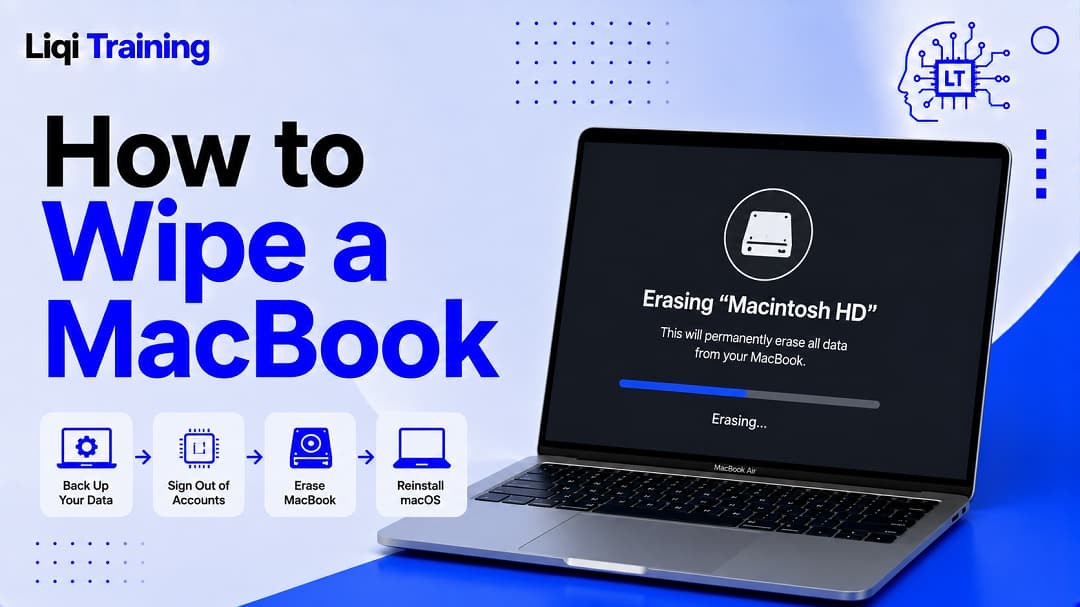
The good news is that macOS includes a built-in way to erase a compatible Mac and return it to an out-of-box state. On supported Macs, Erase All Content and Settings removes your data and settings while keeping the installed version of macOS in place. It also handles important account and security steps, including signing you out of Apple services and turning off Find My and Activation Lock.
For older Macs that do not support Erase All Content and Settings, the process is different. You may need to sign out of your accounts manually, erase the startup disk from macOS Recovery, reinstall macOS, and, for certain Intel Macs, reset NVRAM.
This guide explains how to wipe a MacBook before selling or giving it away, including what to do before erasing the Mac, how to determine which method applies to your computer, and how to leave it ready for its next owner.
Key Notes:
- Back up anything you want to keep before erasing the MacBook.
- Erase All Content and Settings is the preferred method on compatible Macs.
- It is available on Macs with Apple silicon or the Apple T2 Security Chip running macOS Monterey 12 or later.
- Erasing a compatible Mac through Erase Assistant signs you out of Apple services and turns off Find My and Activation Lock.
- Older Macs require a manual erase and macOS reinstallation process.
- Do not continue through the setup assistant after wiping the Mac if you are handing it to someone else. Shut it down at the setup screen instead.
- If you have already sold or given away the Mac without removing Activation Lock, you may still be able to remove it remotely through Find My.
Before you wipe your MacBook, protect the data you still need
Wiping a MacBook is destructive. Once the erase process is completed, the files and accounts stored on that Mac are no longer available through the normal user environment.
Before starting, identify anything you may need on your next computer. This can include documents, photos, downloads, project files, browser bookmarks, locally stored passwords, application data, music, and other files.
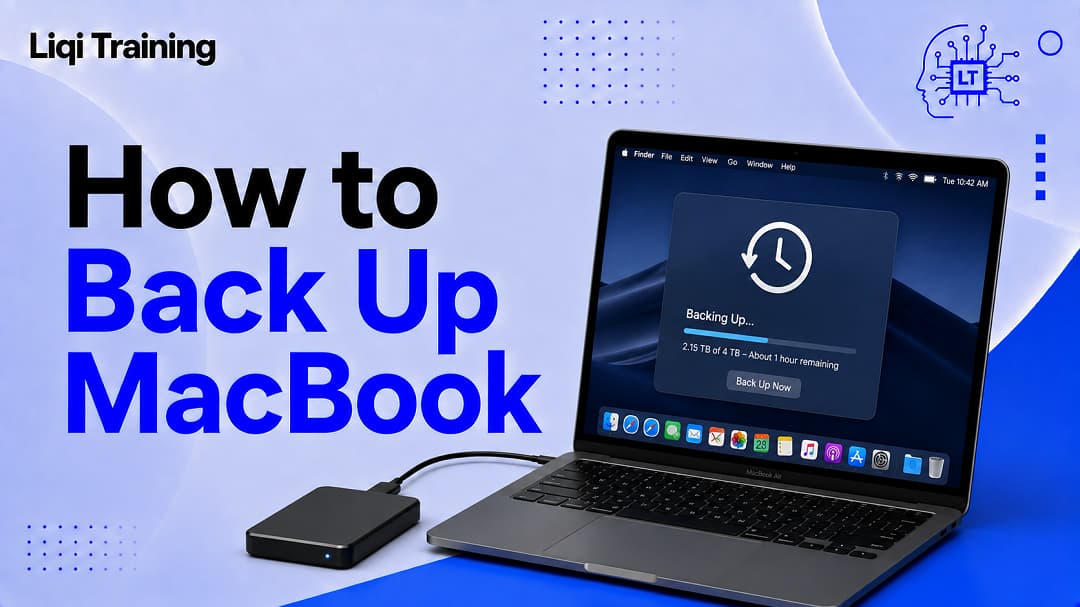
A Time Machine backup is one option. Apple specifically recommends backing up a Mac before erasing it, because the erase process removes the information stored on the computer.
If you have not created a backup recently, see How to Back Up Your MacBook: Easy Ways to Protect Your Files and Photos before continuing.
The important distinction is that signing out of an account is not a substitute for backing up local files. Your cloud services may contain some of your information, but you should not assume that every file or application-specific piece of data is available elsewhere.
Once the backup is complete, verify that the files you care about can actually be accessed from the backup or your replacement device.
Check which MacBook you have
The easiest wipe method depends on the Mac’s hardware and macOS version.
Apple says Erase All Content and Settings is available on Macs with Apple silicon or the Apple T2 Security Chip running macOS Monterey 12 or later.
Apple silicon Macs include models using Apple’s M-series chips. Many Intel Macs, however, do not support the modern erase assistant, although some Intel models equipped with the T2 Security Chip do.
You can check whether your Mac has Apple silicon or an Intel processor by opening the Apple menu and selecting About This Mac.
If the Mac displays an Apple chip such as an M-series processor, it is an Apple silicon Mac. If it lists an Intel processor, it is an Intel-based Mac.
You should also check the macOS version because the availability of the erase feature depends on the operating system as well as the hardware.
The easiest way to wipe a compatible MacBook
If your Mac supports Erase All Content and Settings, this is generally the simplest method to use before selling, giving away, or trading in the computer.
On macOS Ventura 13 or later, Apple places the feature under:
Apple menu > System Settings > General > Transfer or Reset > Erase All Content and Settings
Apple’s current support documentation identifies Transfer or Reset as the location for Erase Assistant in System Settings.
On macOS Monterey 12, the interface is different because Monterey uses System Preferences rather than the later System Settings interface. Apple provides the Erase All Content and Settings option through System Preferences on compatible Monterey Macs.
When you start Erase Assistant, you may be asked to authenticate with administrator credentials. The assistant then displays information about what will be removed.
Review the information carefully before confirming.
Erase Assistant is designed to remove user accounts, data, applications, and settings. Apple also states that it signs the user out of Apple services such as iCloud and turns off Find My and Activation Lock.
That combination is important when transferring ownership because the next person needs to be able to activate and configure the Mac with their own Apple Account.
What Erase All Content and Settings removes
The erase process is broader than manually deleting your files.
Apple says Erase Assistant removes content and settings, installed applications, user accounts and their data. It also erases all volumes on the Mac, rather than simply removing information from the currently selected user account.
On Macs where Boot Camp has been used to install Windows, Apple notes that the BOOTCAMP volume can also be erased by the process.
The process also handles important security relationships. It signs you out of Apple services and disables Find My and Activation Lock so that the Mac is no longer associated with you.
This is why using the built-in erase assistant is preferable to simply creating a new user account and deleting your old one. A new account does not constitute a complete ownership transfer.
What to do when the Mac finishes erasing
After the erase process completes, the Mac should return to the setup experience intended for a new user. Apple says a successfully erased Mac displays the Hello screen and can then be set up by its new owner.
If you are selling or giving away the Mac, do not complete the setup process yourself.
Apple specifically advises that when preparing a Mac for another person, you should leave it at the setup assistant rather than continuing through setup. On supported Macs, after the Mac activates and restarts, you can shut it down rather than configuring it with your own information or previously connected accessories.
This gives the recipient the same basic starting point they would have when setting up the Mac themselves.
How to wipe an older MacBook without Erase All Content and Settings
Not every MacBook supports Erase All Content and Settings.
If your Mac does not offer that option, Apple provides an alternative process involving account sign-outs, macOS Recovery, Disk Utility, and macOS reinstallation.
The exact sequence can vary according to the Mac model and macOS version, so it is important not to apply instructions designed for Apple silicon to an Intel Mac or vice versa.
For an older Mac that requires the manual approach, begin by backing up your data. Then sign out of the services that are associated with the computer.
Apple’s current guidance for Macs without Erase All Content and Settings includes signing out of iCloud and handling older iTunes authorization where applicable. Macs running macOS Catalina 10.15 or later do not require the old iTunes deauthorization step because iTunes was replaced by Apple’s newer media applications.
After the account steps, start the Mac from macOS Recovery, use Disk Utility to erase the startup disk, and reinstall macOS. Apple describes this as the appropriate alternative when Erase All Content and Settings is unavailable.
Once macOS has been reinstalled, the Mac returns to the setup assistant.
Why you should remove Find My and Activation Lock
One of the most important parts of preparing a MacBook for a new owner is removing the connection between the computer and your Apple Account.
Activation Lock is associated with Find My. Its purpose is to prevent someone else from easily activating a device that remains associated with its previous owner.
Apple says that before selling, giving away, or trading in a device, you should remove Activation Lock so another person can activate it with their own Apple Account.
On a compatible Mac, Erase Assistant takes care of this as part of the erase process. Apple states that Erase Assistant turns off Find My and Activation Lock when the Mac is erased.
If you are following a manual erase procedure on an older Mac, however, account and Find My steps need to be handled appropriately.
Do not assume that deleting your local user account removes Activation Lock. Those are separate concepts.
What if you already sold or gave away the MacBook?
If the MacBook has already left your possession and you forgot to remove Find My or Activation Lock, you may still be able to take action remotely.
Apple’s Find My documentation says you can remotely erase a device through Find My if it was previously added to the service. After the device has been erased, you can remove it from Find My so another person can activate it.
For a Mac that is still associated with your account, open Find My, select the Mac from your devices, and use the available erase controls.
If the Mac is offline, Apple says a remote erase begins when the device next connects to a Wi-Fi or cellular network. After the erase has completed, you can remove the device so that Activation Lock is removed and another person can activate it.
This is particularly important if the buyer reports that the Mac is asking for your Apple Account information during activation.
Should you manually delete files before wiping the Mac?
Usually, there is no need to manually delete every document, photo, or application if you are using the appropriate full erase process.
Erase Assistant is specifically designed to remove the Mac’s content, settings, applications, and user accounts.
Manually deleting files first can therefore add unnecessary work.
The exception is when you are preparing for the wipe and need to remove information from the computer while retaining it elsewhere. In that situation, moving or copying important files to your backup location makes sense.
Once you have verified your backup, the full erase should handle the removal of the remaining data.
What about Safari, Chrome, passwords, and saved accounts?
A proper full erase is designed to remove your user data and settings rather than leaving individual applications behind.
This matters because browsers can contain considerably more information than the visible bookmarks. Depending on how the browser was configured, it may have stored browsing history, cookies, saved passwords, autofill information, extensions, and account sessions.
The same principle applies to email applications, cloud storage applications, messaging apps, and other services.
You should therefore avoid relying on a checklist that only says to delete your browser history and empty the Trash. A complete Mac erase is the appropriate ownership-transfer process when the objective is to remove your information from the computer.
If you are particularly concerned about an account, you can also review its active devices or sessions from another trusted device after the Mac has been erased.
What about connected AirPods and other Bluetooth devices?
A MacBook can remember previously connected Bluetooth accessories.
Apple’s instructions for preparing a Mac that cannot use Erase All Content and Settings include removing connected Bluetooth accessories as part of the manual preparation process.
You normally do not need to give your AirPods to the buyer simply because they were previously connected to your Mac. Your AirPods remain your personal accessory.
If you need help managing the connection itself, see How to Connect AirPods to MacBook: Step-by-Step Bluetooth Setup Guide.
The important point during an ownership transfer is that the Mac should not remain configured around your personal accessories or accounts.
Should you reset the MacBook or wipe it?
The words “reset” and “wipe” are sometimes used interchangeably, but they can describe different goals.
If you are troubleshooting a problem and intend to keep the Mac, you may not need to erase all personal data.
If you are selling, giving away, or trading in the computer, your objective is different. You want to remove your information and return the Mac to a state in which another person can set it up.
Apple’s Erase All Content and Settings feature is designed specifically for this type of situation. It removes content and settings while maintaining the currently installed operating system.
For a broader explanation of resetting a MacBook Air or Pro, see How to Factory Reset a MacBook Air or MacBook Pro: Complete Reset Guide.
That distinction can prevent a common mistake: performing a simple restart or changing a few settings when what is actually required is a complete ownership-transfer wipe.
What if the MacBook will not start normally?
A Mac that does not boot normally requires a different approach.
Apple’s guidance for Macs that cannot use Erase All Content and Settings points to macOS Recovery and Disk Utility as part of the manual erase process.
The exact startup procedure differs between Apple silicon and Intel Macs, so do not assume that instructions for one architecture will work on the other.
If the Mac contains data you have not backed up and you cannot start it normally, pause before erasing it. A successful wipe may permanently remove the files you are trying to recover.
If the computer is being sold because it has developed a fault, the buyer or repair service should also be informed about the condition rather than being given a Mac that is still linked to your accounts.
Do you need to reinstall macOS?
Whether you need to reinstall macOS depends on which erase method your Mac supports.
With Erase All Content and Settings, Apple says the process erases settings, data, and applications while maintaining the operating system currently installed.
Therefore, you generally do not perform a separate macOS installation afterward when the built-in erase assistant completes successfully.
For Macs that require the manual Recovery method, however, Apple instructs users to erase the startup disk and reinstall macOS.
This is one reason identifying your Mac model and macOS version before starting is important.
A final check before handing over the MacBook
Once the erase is finished, the most important thing is to confirm that the Mac is no longer configured with your personal information.
Ideally, the computer should be sitting at the initial setup screen rather than displaying your desktop, user account, applications, or personal files. Apple says a completed Erase Assistant process leaves the Mac at the Hello screen so it can be configured by a new user.
If you see your normal desktop after what you believed was a factory erase, stop and check what actually happened before handing the Mac over.
You should also avoid signing back into the Mac simply to test it after the wipe. The purpose of leaving the setup assistant untouched is to let the next owner perform the initial configuration themselves.
If you are transferring the Mac to someone you know, you can provide the model information, charger, accessories, and any legitimate purchase documentation separately.
How to prepare a MacBook for sale: a simple workflow
The safest approach is to think of the process as a sequence rather than one erase button.
First, back up your data and verify that important files are available elsewhere. Then check whether the Mac supports Erase All Content and Settings. If it does, use that feature through System Settings > General > Transfer or Reset on macOS Ventura 13 or later.
Next, review the information presented by Erase Assistant and confirm that you are ready to remove the data.
After the erase, let the Mac return to its setup screen and shut it down rather than completing the setup yourself.
If your Mac does not support Erase All Content and Settings, follow Apple’s model-specific manual process involving account sign-outs, macOS Recovery, Disk Utility, and macOS reinstallation.
Finally, make sure the Mac is no longer associated with your Apple Account and that Activation Lock has been removed.
Frequently Asked Questions
Does wiping a MacBook delete everything?
A proper full erase removes the data, settings, applications, and user accounts stored on the Mac. Apple’s Erase Assistant also handles Find My and Activation Lock on compatible Macs.
You should still back up anything you want to keep before starting because the erase is intended to remove the information from the computer.
Is Erase All Content and Settings available on every MacBook?
No. Apple says the feature requires a Mac with Apple silicon or the Apple T2 Security Chip and macOS Monterey 12 or later.
Older Macs may require the manual erase-and-reinstall procedure.
Do I need to sign out of iCloud before using Erase All Content and Settings?
Erase Assistant is designed to sign you out of Apple services and turn off Find My and Activation Lock as part of the erase process.
If your Mac does not support Erase All Content and Settings, Apple provides separate sign-out steps as part of the manual preparation process.
Does factory resetting a Mac remove Activation Lock?
On a compatible Mac, Apple’s Erase Assistant turns off Find My and Activation Lock as part of the erase process.
If you manually erase an older Mac, you need to ensure that the Mac is no longer associated with your Apple Account before transferring ownership.
What should I do if I forgot to remove the Mac from Find My?
If the Mac has already been sold or given away, Apple says you can use Find My to erase the device remotely and then remove it from Find My after the erase completes. This removes Activation Lock and allows another person to activate the Mac.
Should I leave the MacBook turned on for the buyer?
No. Once the Mac has been erased and reaches the initial setup assistant, there is normally no reason for you to complete the setup. Apple recommends leaving the Mac in that out-of-box state when selling, giving it away, or trading it in.
The safest way to wipe a MacBook before selling it
The essential principle is simple: back up first, erase completely, remove the Apple Account relationship, and leave the Mac at the setup screen.
For compatible Macs, Erase All Content and Settings makes the process considerably easier because it combines the data-erasure and account-removal steps into one guided process. Apple says it removes content, settings, applications, and user accounts while also turning off Find My and Activation Lock.
If the feature is unavailable, do not improvise with random deletion methods. Use the appropriate Apple-supported Recovery, Disk Utility, and macOS reinstallation procedure for that Mac.
Most importantly, do not skip the backup stage. Once a MacBook has been properly wiped, recovering information that was stored only on that computer can become considerably more difficult.
And if the Mac is being transferred to someone else, the final sign that you are finished is not your familiar desktop. It is the Hello/setup screen, waiting for its new owner to begin.
ADVERTISEMENT