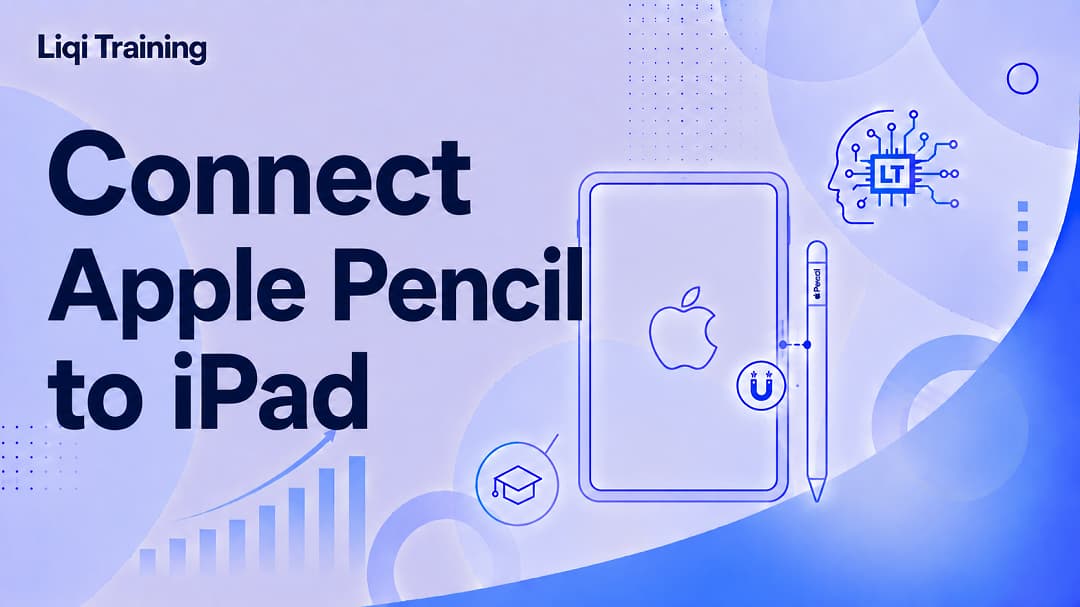
Connecting an Apple Pencil takes only a few moments when you use the correct pairing method for your model. Apple Pencil compatibility depends on your iPad model and the generation of Apple Pencil you own. Most Apple Pencil connection issues can be resolved by charging the stylus, enabling Bluetooth, or restarting your iPad. Once paired, your Apple Pencil reconnects automatically whenever Bluetooth is enabled. You only need to pair your Apple Pencil once unless you reset your iPad or pair the Pencil with another compatible device.
How to Connect an Apple Pencil to Your iPad
Whether you’re taking handwritten notes, sketching digital artwork, editing photos, or marking up PDF documents, an Apple Pencil can make your iPad much more versatile. Pairing it with your iPad is quick, but the process depends on which Apple Pencil and iPad model you own.
This guide explains how to identify your Apple Pencil, check compatibility, pair it correctly, and troubleshoot common connection problems.
Quick Answer
If you’re in a hurry, here’s the short version:
- Apple Pencil (USB-C): Connect it to your iPad using the included USB-C cable.
- Apple Pencil Pro: Attach it magnetically to the side of a compatible iPad.
- Apple Pencil (2nd Generation): Snap it to the magnetic connector on the side of a compatible iPad.
- Apple Pencil (1st Generation): Plug it into your iPad’s Lightning port or use the appropriate adapter on newer compatible iPads.
Once connected, a pairing message appears. Tap Pair, and your Apple Pencil is ready to use.
Before You Begin
Before attempting to connect your Apple Pencil, make sure:
- Your iPad is compatible with your Apple Pencil model.
- Bluetooth is turned on.
- Your iPad is updated to the latest compatible version of iPadOS.
- Your Apple Pencil has sufficient battery power.
These simple checks prevent most pairing problems.
Step 1: Identify Your Apple Pencil
Apple currently offers multiple Apple Pencil models, and each connects differently.
Apple Pencil Pro
- Magnetic attachment
- Wireless pairing
- Wireless charging
- Advanced squeeze and barrel roll features
- Compatible only with supported newer iPad models
Apple Pencil (USB-C)
- USB-C pairing
- USB-C charging
- Magnetic storage on some iPad models
- Designed for a wide range of modern iPads
Apple Pencil (2nd Generation)
- Magnetic pairing
- Wireless charging
- Double-tap gesture support
Apple Pencil (1st Generation)
- Lightning connector
- Wired pairing
- Charges through the Lightning connector or compatible adapter
Knowing which Apple Pencil you own is the first step toward successful pairing.
Step 2: Check Compatibility
Not every Apple Pencil works with every iPad.
Apple designs each Pencil model to support specific iPad models. Before pairing, confirm that your iPad supports your Apple Pencil.
If you’re unsure, compare your iPad model with Apple’s official compatibility list.
Using an incompatible Apple Pencil will prevent pairing regardless of the connection method.
How to Connect Apple Pencil Pro
Apple Pencil Pro pairs automatically.
Steps
- Unlock your iPad.
- Enable Bluetooth.
- Attach Apple Pencil Pro magnetically to the side of your iPad.
- Wait for the pairing notification.
- Tap Pair.
Once paired, the Pencil begins charging wirelessly while attached.
How to Connect Apple Pencil (2nd Generation)
The second-generation Apple Pencil uses nearly the same process.
Steps
- Unlock your iPad.
- Turn on Bluetooth.
- Attach the Apple Pencil to the magnetic connector on the side of your iPad.
- Wait for the pairing prompt.
- Tap Pair.
After pairing, the Pencil reconnects automatically whenever it’s attached.
How to Connect Apple Pencil (USB-C)
If you own the USB-C Apple Pencil:
- Connect one end of a USB-C cable to the Pencil.
- Connect the other end to your compatible iPad.
- Wait for the pairing message.
- Tap Pair.
- Disconnect the cable once pairing is complete.
Future connections occur automatically as long as Bluetooth remains enabled.
How to Connect Apple Pencil (1st Generation)
The first-generation Apple Pencil uses a wired pairing process.
On Lightning iPads
- Remove the cap from the Apple Pencil.
- Insert it into the Lightning port.
- Wait for the pairing notification.
- Tap Pair.
On Supported USB-C iPads
Use the official USB-C adapter supplied for compatible models.
Connect the Pencil using the adapter, then complete the pairing prompt that appears.
How to Check If Your Apple Pencil Is Connected
After pairing, you can verify the connection in several ways.
Open Settings > Bluetooth.
Your Apple Pencil should appear as Connected.
You can also check its battery level through the Batteries widget or by attaching it magnetically if your model supports wireless charging.
Read Also: How to Change Your Apple ID Password to keep your Apple devices and services secure.
What You Can Do After Pairing
Once connected, your Apple Pencil is ready for a wide variety of tasks.
Popular uses include:
- Writing handwritten notes
- Drawing illustrations
- Editing photos
- Annotating PDF documents
- Signing digital forms
- Creating diagrams
- Marking up screenshots
- Navigating compatible creative apps
Many apps automatically detect Apple Pencil input, allowing you to start writing or drawing immediately.
Apple Pencil Connection Problems and How to Fix Them
Although connecting an Apple Pencil is usually quick and straightforward, you may occasionally run into pairing issues. Most problems can be resolved in just a few minutes.
Apple Pencil Won’t Pair
If your Apple Pencil doesn’t connect:
- Make sure Bluetooth is enabled on your iPad.
- Confirm that your Apple Pencil is compatible with your iPad model.
- Charge the Apple Pencil for at least 10 to 15 minutes.
- Restart your iPad and try pairing again.
- Update your iPad to the latest compatible version of iPadOS.
If the pairing prompt still doesn’t appear, disconnect and reconnect the Apple Pencil using the appropriate method for your model.
Apple Pencil Is Connected but Not Working
If your Apple Pencil appears connected but doesn’t respond:
- Open a note-taking or drawing app to test it.
- Check the battery level.
- Restart your iPad.
- Remove the Pencil from Bluetooth (if applicable) and pair it again.
- Inspect the Pencil tip to ensure it is securely tightened.
If the problem persists across multiple apps, the issue may require further troubleshooting or service.
Apple Pencil Keeps Disconnecting
Frequent disconnections are uncommon but can occur if:
- The battery is low.
- Bluetooth is temporarily unstable.
- Your iPad software needs updating.
- The magnetic connector is dirty (for supported models).
Cleaning the magnetic charging area with a soft, lint-free cloth can sometimes improve the connection.
How to Charge Your Apple Pencil
Keeping your Apple Pencil charged helps ensure it’s always ready when you need it.
Apple Pencil Pro
Attach it magnetically to the side of your compatible iPad.
Charging begins automatically.
Apple Pencil (2nd Generation)
Snap it onto the magnetic connector on the side of your iPad.
The battery starts charging wirelessly.
Apple Pencil (USB-C)
Connect it using a USB-C cable.
A battery indicator appears on your iPad.
Apple Pencil (1st Generation)
Insert it into the Lightning port or use the compatible USB-C adapter on supported iPads.
Charging usually begins immediately.
How to Check the Apple Pencil Battery Level
Knowing your battery level helps prevent interruptions while working.
You can check it in several ways.
Using the Batteries Widget
- Swipe to your Widgets screen.
- Locate the Batteries widget.
- View the remaining battery percentage for both your iPad and Apple Pencil.
While Charging
If your Apple Pencil supports magnetic charging, attaching it to your iPad briefly displays the current battery level.
Tips for Getting the Best Performance
To keep your Apple Pencil performing at its best:
- Keep your iPad updated.
- Store the Pencil safely when not in use.
- Avoid exposing it to excessive heat or moisture.
- Charge it regularly, even if you don’t use it every day.
- Replace a worn Pencil tip if writing accuracy begins to decline.
These simple habits can help extend the life of both your Apple Pencil and your iPad.
Apple Pencil Features Worth Exploring
Once your Apple Pencil is connected, you can take advantage of features designed to improve productivity and creativity.
Depending on your Apple Pencil model and iPad, you may have access to:
- Pressure-sensitive drawing
- Tilt recognition for shading
- Palm rejection while writing
- Scribble to convert handwriting into text
- Quick Note shortcuts
- Markup tools for PDFs and screenshots
- Double-tap gestures (Apple Pencil 2nd Generation)
- Squeeze gestures and barrel roll (Apple Pencil Pro)
Exploring these features can help you get more value from your device, whether you’re a student, professional, or digital artist.
Caring for Your Apple Pencil
A few maintenance habits can help keep your Apple Pencil in excellent condition.
Consider these recommendations:
- Use only Apple-approved charging accessories.
- Keep the charging contacts clean.
- Avoid dropping the Pencil onto hard surfaces.
- Store it magnetically when supported by your iPad.
- Replace the tip if it becomes loose or excessively worn.
Proper care helps maintain accurate input and reliable performance.
Frequently Asked Questions
Why won’t my Apple Pencil connect to my iPad?
The most common reasons include an incompatible iPad model, Bluetooth being turned off, a low Apple Pencil battery, or outdated iPad software. Confirm compatibility first, then charge the Pencil and try pairing again.
Do I need to pair my Apple Pencil every time?
No. Once paired, your Apple Pencil reconnects automatically whenever Bluetooth is enabled and the Pencil is attached or connected using its supported method.
Can I use one Apple Pencil with multiple iPads?
Yes, but you’ll need to pair it with each compatible iPad when switching devices. Depending on the Apple Pencil model, you may need to reconnect it each time you move between iPads.
Does Apple Pencil work without Bluetooth?
No. Bluetooth is required for pairing and many Apple Pencil features. Some functionality may continue briefly after pairing, but Bluetooth should remain enabled for the best experience.
How long does the Apple Pencil battery last?
Battery life varies by model and usage, but most Apple Pencil models are designed to provide many hours of continuous use on a full charge. Regular charging helps ensure uninterrupted performance.
Can I replace the Apple Pencil tip?
Yes. Apple Pencil tips are replaceable. If your writing or drawing feels less accurate, replacing a worn tip can restore a smoother experience.
Conclusion
Connecting an Apple Pencil to your iPad is a quick process once you know which Apple Pencil model you have and whether it’s compatible with your device. Whether you’re using Apple Pencil Pro, Apple Pencil (USB-C), Apple Pencil (2nd Generation), or Apple Pencil (1st Generation), the pairing process usually takes only a few moments and requires minimal setup.
After pairing, your Apple Pencil automatically reconnects whenever it’s needed, allowing you to write notes, create artwork, annotate documents, edit images, and navigate compatible apps with greater precision. If you encounter connection issues, simple steps such as charging the Pencil, checking Bluetooth, confirming compatibility, or updating iPadOS will resolve most problems.
By understanding how your Apple Pencil connects, charges, and functions, you can make the most of your iPad for work, study, creativity, and everyday productivity. With the right setup and a few basic maintenance habits, your Apple Pencil can remain a reliable tool for years to come.
ADVERTISEMENT