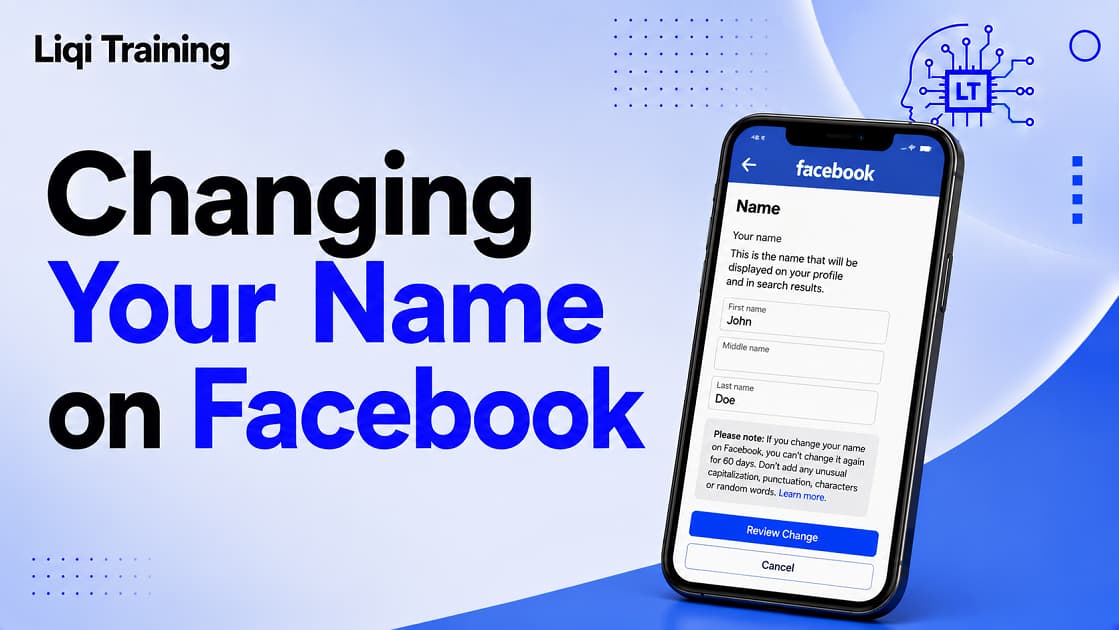
Your Facebook profile name is one of the first things people see when they search for or interact with your account. Whether you’ve recently gotten married, legally changed your name, corrected a spelling mistake, or simply want to use the name you’re commonly known by, Facebook allows you to update your profile name, but not without certain restrictions.
Many users asks “how to change your name on Facebook” only to discover that the option is unavailable, their request is rejected, or they’re told to wait 60 days before making another change. These limitations often create confusion, especially when the reason isn’t immediately clear.
The good news is that Facebook has a well-defined naming policy designed to reduce impersonation, fraud, and misleading identities. Once you understand these rules, changing your name becomes much more straightforward.
This guide explains how to change your Facebook name on Android, iPhone, and desktop, what Facebook’s naming standards require, why requests are sometimes rejected, how the 60-day waiting period works, and what to do if Facebook asks you to verify your identity. The steps reflect Meta’s current Accounts Center experience, where profile details are managed across Facebook and other Meta services.
Facebook allows you to change your profile name through Accounts Center if your account meets its naming guidelines. Most users can change their name only once every 60 days after a successful update. Your profile name should generally match the name you use in everyday life and may need to be verified if requested. Names containing symbols, numbers, unusual capitalization, titles, or offensive language are typically rejected. If your request is denied, reviewing Facebook’s naming standards and completing identity verification (when requested) usually provides the best path toward approval.
Why You Might Need to Change Your Facebook Name
Changing your Facebook name isn’t always about creating a new online identity. In many cases, it’s simply about ensuring your profile accurately reflects who you are.
Some of the most common reasons include:
- Getting married or divorced
- Completing a legal name change
- Correcting spelling mistakes
- Updating a maiden or family name
- Using the name friends and colleagues know you by
- Improving consistency across your online accounts
Facebook encourages people to use the name they use in everyday life because it helps reduce impersonation and makes it easier for others to recognize authentic profiles.
Facebook’s Name Policy Explained
Before you submit a name change request, it’s important to understand Facebook’s naming standards. Many rejected requests happen because the proposed name doesn’t comply with these rules rather than because of a technical problem.
What Names Are Allowed?
Facebook generally expects your profile name to reflect the name you use in daily life. It doesn’t necessarily have to match a government-issued ID in every case, but if Facebook later asks you to confirm your identity, you’ll need supporting documentation that matches the name you use.
Typical acceptable names include:
- Legal names
- Commonly used first and last names
- Updated names after marriage or divorce
- Corrected spellings
- Certain additional names such as nicknames or maiden names, which can often be added separately rather than replacing your primary name.
What Facebook Doesn’t Allow
Facebook may reject names that include:
- Numbers
- Symbols
- Excessive punctuation
- Random capitalization
- Repeating characters
- Professional or religious titles
- Offensive words
- Phrases instead of personal names
- Characters from multiple languages that don’t comply with its policy.
These restrictions help reduce spam, fake accounts, and impersonation across the platform.
How to Change Your Name on Facebook on Android
If you primarily use Facebook on your Android phone, you can update your profile name directly through Meta’s Accounts Center. The exact layout may vary slightly depending on your app version, but the process is generally the same.
Step-by-Step Instructions
- Open the Facebook app.
- Tap your profile picture or the Menu (☰) icon.
- Select Settings & Privacy.
- Tap Settings.
- Open Accounts Center.
- Select Profiles.
- Choose your Facebook profile.
- Tap Name.
- Enter your new first, middle (optional), and last name.
- Tap Review Change.
- Choose how you want your name displayed.
- Enter your Facebook password if prompted.
- Tap Save Changes.
Before You Tap Save
Take a moment to check:
- Correct spelling
- Proper capitalization
- No unnecessary symbols
- No titles such as “Dr.” or “Professor”
- Your chosen name complies with Facebook’s naming standards
Submitting an accurate name the first time helps reduce the chances of rejection.
How to Change Your Name on Facebook on iPhone
The process on iOS is almost identical because Meta now manages personal details through Accounts Center.
Follow These Steps
- Open Facebook.
- Tap the Menu button.
- Navigate to Settings & Privacy.
- Open Settings.
- Tap Accounts Center.
- Choose Profiles.
- Select your Facebook account.
- Tap Name.
- Enter your updated name.
- Select Review Change.
- Confirm your preferred display format.
- Save your changes.
Most name changes appear immediately if no manual review is required.
How to Change Your Name on Facebook Using a Computer
Many users still prefer changing account settings on a desktop browser because it’s easier to review information before submitting changes.
Desktop Instructions
- Sign in to Facebook.
- Click your profile picture.
- Select Settings & Privacy.
- Click Settings.
- Open Accounts Center.
- Click Profiles.
- Select your Facebook profile.
- Click Name.
- Update your information.
- Click Review Change.
- Confirm the display order.
- Click Save Changes.
What Happens After You Submit Your Name Change?
Not every request follows the same approval process.
Facebook may:
- approve your request immediately
- perform an automated review
- request additional identity verification
- reject the request if it violates its policies
The outcome depends on your account history, the type of name change, and whether your new name complies with Facebook’s standards.
Immediate Approval
If your new name meets Facebook’s guidelines and your account has no unusual activity, the change often takes effect almost immediately.
Friends will simply begin seeing your updated profile name.
Manual Review
Certain requests receive additional review.
Examples include:
- significant changes to both first and last names
- multiple recent name changes
- names similar to known public figures
- unusual spelling patterns
Manual reviews may take longer than automatic approvals.
Identity Verification
In some situations, Facebook asks you to verify your identity before approving the request.
You may be asked to upload documentation showing the name you use in everyday life, particularly if the requested change differs substantially from your existing profile name.
Understanding Facebook’s 60-Day Waiting Period
One of the most misunderstood parts of Facebook’s naming policy is the 60-day restriction.
Why Does Facebook Have This Rule?
Facebook limits frequent name changes to help prevent:
- impersonation
- scams
- fake identities
- account abuse
- confusion among friends and followers
After successfully changing your name, you generally won’t be able to change it again for another 60 days.
Can You Change It Before 60 Days?
In general, no.
However, if:
- your account was compromised,
- your previous change contains an error,
- or Facebook specifically requests additional verification,
you may have an opportunity to submit supporting documentation for review. Approval is handled on a case-by-case basis and isn’t guaranteed.
Why Facebook Won’t Let You Change Your Name
If Facebook refuses your request, it doesn’t always mean something is wrong with your account. In most cases, the request has triggered one of Facebook’s built-in safeguards designed to prevent impersonation, fraud, and account abuse.
Understanding the reason behind the rejection can help you resolve the issue much faster.
You Recently Changed Your Name
The most common reason is the 60-day waiting period.
After a successful name change, Facebook generally prevents another change for 60 days. This restriction applies even if you simply want to correct a minor spelling mistake or adjust capitalization.
If you changed your name only a few weeks ago, you’ll usually need to wait until the restriction expires before submitting another request.
Your New Name Doesn’t Follow Facebook’s Standards
Facebook automatically reviews submitted names against its naming policy.
Your request may be rejected if it contains:
- Numbers
- Special symbols
- Emojis
- Unusual capitalization
- Repeated punctuation
- Professional titles such as Dr., Prof., or Captain
- Religious titles
- Offensive language
- Random words or phrases instead of a personal name.
For example:
❌ John!!! Smith
❌ Mike #1 Johnson
❌ CEO Robert Williams
✔️ Robert Williams
Facebook Needs to Verify Your Identity
Sometimes Facebook simply wants confirmation that you’re using the name you’re commonly known by.
If this happens, you may receive a prompt asking you to upload supporting documents.
Facebook states that verification doesn’t always require a government-issued ID. Depending on your situation, it may also accept combinations of other documents that establish the name you use in everyday life.
Suspicious Account Activity
A sudden name change following unusual account activity can trigger additional security checks.
Examples include:
- Logging in from multiple countries within a short period
- Numerous failed login attempts
- A recently recovered hacked account
- Multiple profile changes in a short timeframe
These reviews help protect accounts from unauthorized changes.
If you’ve recently regained access to your account, it’s also a good idea to read How to Change Your Facebook Password on iPhone, Android, and Desktop (Even If You Forgot It) to improve your account security before making additional profile changes.
Temporary Technical Problems
Occasionally, the issue isn’t your name at all.
Facebook may experience temporary bugs that affect profile settings or delay processing.
If you receive an unexpected error despite following every requirement:
- Wait several hours.
- Restart the app.
- Try using a desktop browser.
- Check whether Facebook is experiencing a wider outage.
If other users are reporting similar issues, consult this guide Is Facebook Down Right Now? How to Check Outages, Server Status, and Fix Login Issues before trying again.
How to Fix Common Facebook Name Approval Problems
Different error messages require different solutions.
“You Can’t Change Your Name Right Now”
This usually means one of the following:
- You’re still within the 60-day waiting period.
- Your account is under review.
- Facebook has temporarily restricted profile edits.
How to Fix It
- Check when you last changed your name.
- Wait until the restriction expires if applicable.
- Avoid repeatedly submitting the same request, as this won’t speed up the review process.
“Review Pending”
Some name changes require manual review.
During this time:
- Your existing profile name remains visible.
- You may be asked for additional documentation.
- Processing times can vary depending on the review workload.
There’s generally no need to submit multiple requests while one is already under review.
“Your Name Isn’t Allowed”
This message usually indicates that your requested name violates Facebook’s naming standards.
Review your submission and remove:
- Extra punctuation
- Numbers
- Decorative symbols
- Titles
- Random capitalization
After making corrections, submit the request again.
“Identity Confirmation Required”
If Facebook requests identification:
- Follow the instructions shown in the app or website.
- Upload clear, readable documents.
- Ensure the submitted information matches the name you’re requesting.
- Wait for Facebook’s review decision.
Avoid editing or resubmitting your request while the verification process is still in progress unless Facebook specifically asks you to do so.
How to Upload ID for a Facebook Name Change
Identity verification isn’t required for every name change, but when Facebook requests it, providing accurate documentation can help complete the review.
What Documents Can Be Accepted?
Facebook’s Help Center explains that accepted documents depend on your situation. While government-issued identification is one option, Facebook may also accept combinations of other documents that demonstrate the name you use in everyday life.
Examples may include:
- Passport
- Driver’s license
- National identity card
- Birth certificate
- Other supporting documents listed by Facebook during the verification process
Always upload only the documents specifically requested by Facebook.
Tips for a Successful Verification
To improve the likelihood of approval:
- Use a clear, high-resolution image.
- Ensure all required information is readable.
- Avoid cropping important details.
- Submit documents that match the requested name.
- Follow Facebook’s upload instructions carefully.
If additional information is required, Facebook will normally notify you through your account or email.
Can You Use a Nickname Instead of Your Real Name?
Many people don’t actually want to change their primary Facebook name, they simply want friends to recognize them by a nickname, maiden name, professional name, or another commonly used name.
Fortunately, Facebook provides a feature called Other Names, which lets you add an additional name without replacing your primary profile name. Depending on your settings, this additional name may appear in your profile details and can help people find you in search.
When Should You Use an Additional Name?
An additional name is often a better option if you want to display:
- A nickname
- A maiden name
- A birth name
- A former name
- A professional name
- Another name you’re commonly known by
This approach allows you to keep your primary Facebook name unchanged while making it easier for friends, family, classmates, or colleagues to recognize your profile.
How to Add Another Name
To add an additional name:
- Open your Facebook profile.
- Navigate to About.
- Select Details About You.
- Choose Add a nickname, birth name, or other name.
- Select the appropriate name type.
- Enter the additional name.
- Decide whether you’d like it displayed at the top of your profile.
- Save your changes.
Using this feature is often preferable to changing your primary name if you’re simply trying to make your profile easier to identify.
Facebook Profile Name vs. Facebook Page Name
A common source of confusion is the difference between changing your personal profile name and changing the name of a Facebook Page.
Although both involve names, they’re reviewed under different policies.
Personal Profile Name
Your personal profile represents an individual.
Facebook expects it to:
- Reflect the name you use in everyday life
- Follow its naming standards
- Be changed no more than once every 60 days in most cases
- Be verified if requested.
Facebook Page Name
A Facebook Page represents:
- A business
- A creator
- A public figure
- A brand
- An organization
- A community
Changing a Page name follows a separate review process and is evaluated against Meta’s Page policies rather than personal profile naming standards. Approval may depend on factors such as whether the new name accurately represents the Page.
Best Practices Before Changing Your Facebook Name
Making the right choice the first time can save you from unnecessary delays and the 60-day waiting period.
Before submitting your request:
Double-Check the Spelling
Even small spelling mistakes can become inconvenient because Facebook generally won’t allow another change immediately after approval.
Use Proper Capitalization
Write your name naturally.
For example:
✔️ Sarah Johnson
Instead of:
❌ SARAH JOHNSON
❌ sArAh JoHnSoN
Avoid Decorative Characters
Don’t include:
- Emojis
- Symbols
- Numbers
- Decorative punctuation
- Repeated characters
These frequently lead to automatic rejection.
Consider Searchability
Using the name you’re commonly known by makes it easier for:
- Friends
- Family
- Employers
- Clients
- Classmates
to locate your profile through Facebook Search.
If you’re concerned about privacy after changing your name, you may also find this guide How to Lock Your Facebook Profile and Make Your Personal Information More Private helpful.
Frequently Asked Questions
How often can I change my Facebook name?
Facebook generally allows you to change your primary profile name once every 60 days after a successful change.
Why did Facebook reject my name?
The most common reasons include:
- The name violates Facebook’s naming standards.
- You recently changed your name.
- Identity verification is required.
- The account is undergoing a security review.
Can I use my middle name?
Yes. Facebook allows a middle name field, although it’s optional when updating your profile.
Can I use my business name?
No. Personal Facebook profiles are intended for individuals rather than businesses. If you’re representing a company, use a Facebook Page instead.
How long does Facebook take to approve a name change?
Many requests are approved almost immediately. However, if Facebook needs to review your request or verify your identity, the process may take longer.
Can I change my Facebook name without uploading an ID?
Yes. Many routine name changes don’t require identification. However, Facebook may request documentation if it needs to verify the name you use in everyday life.
Does changing my Facebook name affect Messenger?
Yes. Your updated name is generally reflected across your connected Meta services, including Messenger, because profile information is managed through Accounts Center.
Will my friends be notified?
Facebook doesn’t typically send a dedicated notification announcing that you’ve changed your name. However, friends may notice the update when they visit your profile, see your posts, or interact with you on the platform.
Conclusion
Learning how to change your name on Facebook is relatively easy once you understand Meta’s naming policies and review process.
Before submitting your request, make sure your chosen name reflects the one you use in everyday life, complies with Facebook’s naming standards, and is spelled correctly. Since most users can only change their name once every 60 days, it’s worth reviewing your information carefully before saving the update.
If your request is delayed or rejected, don’t assume there’s a technical problem. Review the error message, confirm that your name follows Facebook’s guidelines, and complete identity verification if requested. Taking these steps usually provides the quickest path to approval.
For additional help managing your Facebook account, you may also be interested in these guides:
- Is Facebook Down Right Now? How to Check Outages, Server Status, and Fix Login Issues
- How to Change Your Facebook Password on iPhone, Android, and Desktop (Even If You Forgot It)
- How to Lock Your Facebook Profile and Make Your Personal Information More Private
- How to Deactivate Facebook Without Losing Messenger, Photos, or Friends
- How to Delete a Facebook Account Permanently or Temporarily in 2026
ADVERTISEMENT