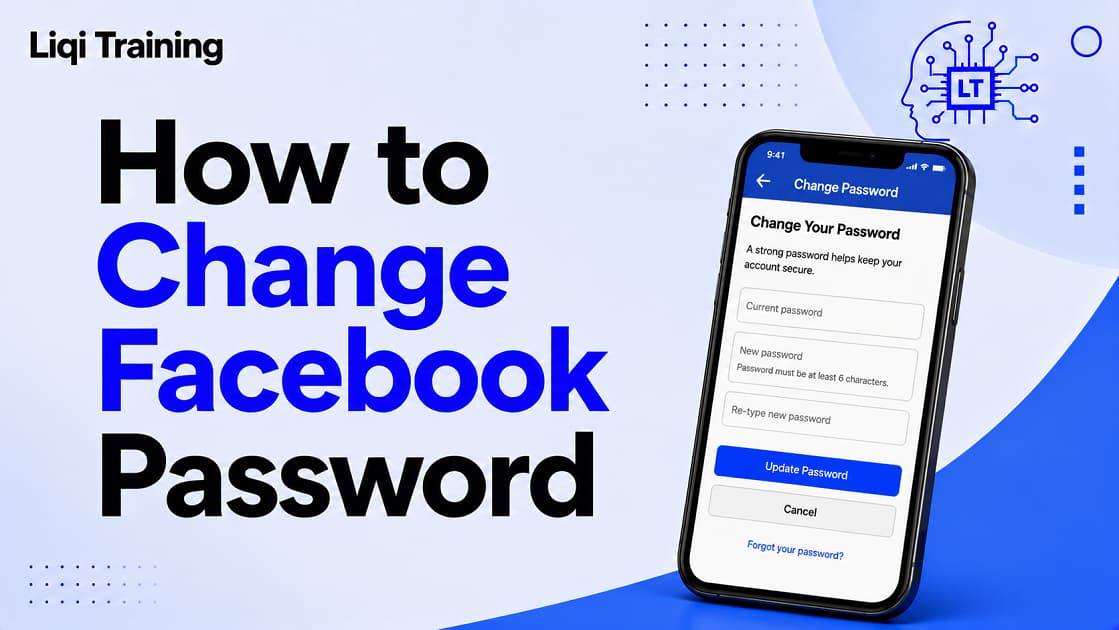
Your Facebook password is one of the most important pieces of information protecting your online identity. It secures your profile, Messenger conversations, Marketplace activity, Pages, and any apps or websites you access using Facebook Login. Whether you want to improve your account security, respond to a suspicious login alert, or simply can’t remember your password, knowing how to change Facebook password quickly can help you regain control of your account before a small problem becomes a serious one.
Fortunately, Facebook has simplified password management through Meta Accounts Center, allowing users to update or reset their password from Android, iPhone, or a desktop browser. If you’ve forgotten your current password, Facebook also provides several recovery options using your email address, phone number, username, or other account information.
This guide shows you every scenario, from changing your password while logged in to recovering access after forgetting it, along with troubleshooting tips and security best practices.
You can change your Facebook password from Accounts Center → Password and Security → Change Password on mobile or desktop. If you’ve forgotten your password, Facebook lets you reset it using your email address, phone number, full name, or username. After changing your password, review your recent login activity and sign out of devices you no longer use. Enable two-factor authentication or a passkey for stronger account protection where supported. Use a unique password that isn’t shared with other websites, since password reuse significantly increases security risks.
When Should You Change Your Facebook Password?
Many people wait until something goes wrong before updating their password. However, changing it periodically, or immediately after a potential security event, can significantly reduce the risk of unauthorized access.
Consider changing your password if:
- You received an unfamiliar login notification.
- You suspect someone else accessed your account.
- You reused the same password on another website.
- A service you use experienced a data breach.
- You shared your password with someone.
- You logged in on a public or shared computer.
- You simply haven’t updated it in a long time.
If you suspect your account has been compromised, changing your password should be one of your first actions after regaining access.
Choose Your Situation
The steps you follow depend on whether you still have access to your account.
I Know My Current Password
If you’re already signed in and know your existing password, you can update it directly through Accounts Center in just a few minutes. This is the fastest and simplest option.
I Forgot My Password
If you can’t remember your password, don’t create a new Facebook account.
Instead, use Facebook’s Forgot password? feature to locate your account and receive a password reset link or verification code. Recovery options depend on the contact information associated with your account.
Think Someone Hacked My Account
If you believe another person changed your password or accessed your account without permission:
- Attempt to recover your account immediately.
- Reset your password.
- Review recent login sessions.
- Remove unfamiliar devices.
- Enable additional security features once access has been restored.
How to Change Your Facebook Password While You’re Logged In
If you already know your current password and simply want to replace it with a stronger one, Facebook makes the process relatively straightforward through Meta Accounts Center. The steps are similar across Android, iPhone, and desktop, although the menu layout varies slightly depending on your device.
Change Your Facebook Password on Android
Android users can update their password directly from the Facebook app.
Step-by-Step Instructions
- Open the Facebook app.
- Tap your profile picture or the Menu (☰) icon.
- Select Settings & Privacy.
- Tap Settings.
- Open Accounts Center.
- Tap Password and Security.
- Select Change Password.
- Choose your Facebook account if you manage multiple Meta accounts.
- Enter your current password.
- Create a new password.
- Confirm the new password.
- Tap Change Password to save the update.
Before Saving Your New Password
Choose a password that:
- Contains at least 12 characters.
- Includes uppercase and lowercase letters.
- Uses numbers and special characters.
- Is unique to Facebook.
- Isn’t based on your birthday, phone number, or common words.
Change Your Facebook Password on iPhone
The iPhone version follows nearly the same process because password settings are managed through Accounts Center.
Follow These Steps
- Launch the Facebook app.
- Tap Menu.
- Select Settings & Privacy.
- Tap Settings.
- Open Accounts Center.
- Choose Password and Security.
- Tap Change Password.
- Select your Facebook profile.
- Enter your current password.
- Type your new password twice.
- Confirm the change.
Facebook may ask you to verify your identity if it detects unusual account activity before completing the update.
Change Your Facebook Password on a Computer
Many users prefer changing passwords from a desktop browser because it’s easier to review security settings afterward.
Desktop Instructions
- Sign in to Facebook.
- Click your profile picture.
- Select Settings & Privacy.
- Click Settings.
- Open Accounts Center.
- Select Password and Security.
- Click Change Password.
- Choose the Facebook account you want to update.
- Enter your existing password.
- Enter your new password.
- Confirm the new password.
- Click Save Changes.
Forgot Your Facebook Password? Here’s How to Reset It
If you can’t remember your password, don’t create a second Facebook account. Instead, use Facebook’s built-in recovery process.
Facebook allows you to locate your account using information already associated with it, such as your email address, mobile phone number, full name, or username. Once your identity is confirmed, you’ll receive instructions to create a new password.
Option 1: Reset Using Your Email Address
If your email address is still linked to your account:
- Visit Facebook’s login page.
- Select Forgot password?
- Enter your email address.
- Select your account from the search results.
- Request a verification code or reset link.
- Follow the instructions in the email.
- Create a new password.
Option 2: Reset Using Your Mobile Phone Number
If your phone number is connected to your Facebook account:
- Tap Forgot password?
- Enter your mobile number.
- Receive a verification code by SMS.
- Enter the code.
- Choose a new password.
Keep in mind that if you use a phone number exclusively for two-factor authentication, Facebook notes that you may need an additional recovery email address or phone number for password recovery.
Option 3: Search by Your Name or Username
If you don’t remember the email address or phone number associated with your account, Facebook also lets you search using your full name or username.
After locating your account, follow the available verification options to continue the recovery process.
Option 4: Use a Trusted Device
If you’ve previously logged into Facebook on a device that’s still recognized, recovery may be simpler because Facebook can use existing session information to verify your identity.
This is one reason it’s helpful to avoid signing out of all your personal devices unless necessary.
What If You Can’t Access Your Email or Phone Number?
Losing access to both your recovery email and phone number can make password recovery more challenging, but it doesn’t always mean your account is lost.
Facebook provides additional account recovery options for users who can no longer access their registered contact information. Depending on your situation, you may be asked to verify your identity or complete additional security checks before regaining access.
If you’ve recently changed your profile details during the recovery process, you may also find this guide How to Change Your Name on Facebook: Rules, Waiting Periods, and Common Approval Problems useful for understanding Facebook’s identity verification requirements.
Facebook Password Reset Not Working? Here’s How to Fix It
Even when you follow Facebook’s password recovery process correctly, you may still encounter unexpected problems. Some issues are caused by incorrect account information, while others stem from temporary security restrictions or browser-related problems.
Rather than trying the same steps repeatedly, identify the specific symptom you’re experiencing and apply the appropriate solution.
You’re Not Receiving the Password Reset Email
If Facebook says it has sent a password reset email but nothing arrives, start by checking the obvious locations.
Review:
- Spam folder
- Junk folder
- Promotions tab (Gmail)
- Other email addresses that may be linked to your Facebook account
Facebook also recommends requesting another reset email if the first one doesn’t arrive.
Additional Tips
- Ensure you’ve entered the correct email address.
- Wait a few minutes before requesting another email.
- Avoid requesting multiple reset emails within a short period.
Your Verification Code Doesn’t Work
Verification codes occasionally expire or become invalid.
If you receive an Invalid Code error:
- Copy the entire code exactly as received.
- Request a fresh verification code instead of reusing an older one.
- Use the most recent email or SMS message, since older codes become invalid after a newer one is generated.
The Password Reset Link Says It’s Invalid
Password reset links are designed for one-time use.
If the link no longer works:
- Request a new reset email.
- Open the newest email instead of an older one.
- Copy the complete URL into your browser if clicking the link fails.
You’ve Reached the Password Reset Limit
To help protect accounts from abuse, Facebook limits how many password reset requests can be made within a certain period.
If you’ve tried too many times, you’ll generally need to wait 24 hours before requesting another password reset.
During this waiting period:
- Don’t continue submitting requests.
- Verify that your recovery email and phone number are correct.
- Prepare to try again once the restriction expires.
Facebook Says Your Password Is Incorrect
If you’re certain you’re entering the correct password but Facebook still rejects it:
Try these checks first:
- Make sure Caps Lock isn’t enabled.
- Confirm your keyboard language is correct.
- Try another browser.
- Clear your browser cache.
- Attempt to log in from the Facebook mobile app.
If the password still isn’t accepted, begin the password recovery process instead of repeatedly guessing.
Accounts Center Won’t Load
Occasionally, users experience temporary loading problems inside Meta Accounts Center.
Possible solutions include:
- Refresh the page.
- Update the Facebook app.
- Restart your device.
- Try another browser.
- Switch between Wi-Fi and mobile data.
If Facebook itself is experiencing technical issues, troubleshooting your device may not solve the problem. In that case, check this guide Is Facebook Down Right Now? How to Check Outages, Server Status, and Fix Login Issues before continuing.
What to Do Immediately After Changing Your Password
Successfully changing your password is only the first step toward securing your account.
Take a few additional minutes to review your security settings.
Log Out of Devices You No Longer Use
Facebook allows you to review active login sessions.
Remove access from:
- Old smartphones
- Shared computers
- Public devices
- Lost or stolen devices
- Browsers you no longer recognize
This ensures that changing your password also prevents continued access from forgotten sessions where appropriate.
Review Recent Login Activity
Check your account’s recent login history for unfamiliar activity.
Look for:
- Unknown devices
- Unrecognized browsers
- Unexpected locations
- Logins at unusual times
If anything appears suspicious, log out of those sessions immediately and consider enabling additional security protections.
Enable Two-Factor Authentication (2FA)
Two-factor authentication adds another verification step beyond your password.
Even if someone discovers your password, they’ll generally still need your authentication code or trusted device to sign in.
Facebook supports several 2FA methods, including authentication apps and security keys.
Update Your Recovery Information
Review your recovery details while you’re already in your security settings.
Confirm that:
- Your recovery email address is current.
- Your mobile phone number is correct.
- You still have access to both.
Keeping this information up to date makes future account recovery much easier.
Consider Using a Passkey
Meta has expanded support for passkeys, allowing eligible users to sign in using biometric authentication or their device PIN instead of relying solely on traditional passwords. Passkeys are designed to reduce phishing and credential theft because they aren’t manually entered on websites.
Tips for Creating a Strong Facebook Password
Changing your password is only effective if the new one is difficult for attackers to guess or reuse. Weak or recycled passwords remain one of the leading causes of account compromise, especially when credentials from unrelated websites are exposed in data breaches. Security experts consistently recommend creating unique passwords for every important online account.
Use a Long Password
Length is one of the most important factors in password strength.
Aim for:
- At least 12 characters
- A combination of uppercase and lowercase letters
- Numbers
- Special characters
Longer passwords are generally much harder to crack than short, simple ones.
Never Reuse Passwords
Avoid using the same password for:
- Banking
- Shopping websites
- Streaming services
If another website suffers a data breach, attackers often try the leaked password on popular services like Facebook. Using a unique password for Facebook significantly reduces this risk.
Consider a Password Manager
Remembering dozens of unique passwords can be difficult.
A reputable password manager can help you:
- Generate strong passwords
- Store them securely
- Autofill login credentials
- Avoid password reuse
This makes it much easier to maintain good security without relying on easily remembered phrases.
Don’t Include Personal Information
Avoid passwords that contain information someone could easily discover, such as:
- Your name
- Birthdate
- Phone number
- Address
- Pet’s name
- Child’s name
Information shared publicly on social media can make these passwords easier to guess.
Enable Extra Security Features
A strong password works best when combined with additional account protection.
Consider enabling:
- Two-factor authentication (2FA)
- Login alerts for unfamiliar devices
- Passkeys, if supported on your device
Meta has expanded support for passkeys and improved account recovery tools to strengthen account security and simplify access recovery.
Common Mistakes to Avoid
Many Facebook account problems stem from avoidable mistakes rather than sophisticated hacking attempts.
Waiting Too Long to Change Your Password
If you suspect someone else knows your password, update it immediately rather than waiting to see if anything happens.
Ignoring Login Notifications
Facebook can notify you when your account is accessed from an unfamiliar device or location.
Review these alerts carefully instead of dismissing them.
Saving Passwords on Public Computers
Avoid allowing browsers on shared computers to remember your Facebook password.
If you must use a public device:
- Use a private browsing window if available.
- Sign out when you’re finished.
- Clear the browser session before leaving.
Falling for Phishing Emails
Attackers sometimes send fake emails claiming your Facebook account has been locked or requires verification.
Before entering your password:
- Confirm you’re on the official Facebook website.
- Check the web address carefully.
- Avoid clicking suspicious links from unsolicited emails or text messages.
Creating Multiple Facebook Accounts
If you forget your password, don’t create a new Facebook profile.
Instead, use Facebook’s official recovery process to regain access to your existing account. Creating duplicate accounts can make future account management more confusing and may complicate identity verification.
Frequently Asked Questions
How often should I change my Facebook password?
Facebook doesn’t require routine password changes on a fixed schedule. However, you should change your password immediately if you suspect unauthorized access, receive a security alert, or learn that you’ve reused a password involved in a data breach.
Can I change my Facebook password without knowing the current one?
Yes. If you’ve forgotten your password, select Forgot password? on the login screen and follow Facebook’s account recovery instructions. You can recover your account using your registered email address, phone number, full name, or username, depending on the recovery options available for your account.
Will changing my password log me out of other devices?
Facebook gives you the option to review your active login sessions after changing your password. For the best security, sign out of devices you no longer recognize or use.
Can I reuse an old Facebook password?
While Facebook may technically allow some previously used passwords depending on its current policies, it’s strongly recommended that you create a completely new, unique password to improve your account’s security.
How can I tell if someone accessed my Facebook account?
Warning signs include:
- Login alerts from unfamiliar locations
- Messages you didn’t send
- Profile changes you didn’t make
- Unknown devices listed in your login history
- Security emails from Facebook that you didn’t expect
If you notice any of these, change your password immediately and review your account security settings.
What’s the difference between changing and resetting a password?
- Changing a password means you’re already signed in and know your current password.
- Resetting a password is used when you’ve forgotten it or can no longer log in.
Can I change my Facebook password through Instagram’s Accounts Center?
If your Facebook and Instagram accounts are linked in Meta Accounts Center, you may be able to manage certain security settings from the shared interface. However, the exact options available depend on how your accounts are configured.
Conclusion
Learning how to change Facebook password is an essential part of protecting your online identity. Whether you’re updating your password as a precaution, responding to suspicious activity, or recovering access after forgetting your credentials, Facebook’s Accounts Center provides a centralized way to manage your account security.
After updating your password, take a few extra minutes to strengthen your overall security. Review your recent login activity, remove devices you no longer use, update your recovery email and phone number, and enable two-factor authentication or a passkey if your device supports it. These additional steps can significantly reduce the likelihood of future account compromise.
If you’re continuing to manage other aspects of your Facebook account, you may also find these guides helpful:
- How to Change Your Name on Facebook: Rules, Waiting Periods, and Common Approval Problems
- How to Lock Your Facebook Profile and Make Your Personal Information More Private
- How to Deactivate Facebook Without Losing Messenger, Photos, or Friends
- How to Delete a Facebook Account Permanently or Temporarily in 2026
- Is Facebook Down Right Now? How to Check Outages, Server Status, and Fix Login Issues
ADVERTISEMENT